Introduction
Updated Oct 18, 2026
Welcome to the Matterly End User Guide. This guide explains how to use Matterly day to day. It does not cover programming.
Open this guide in your browser at:
http://your-domain.com/documentation → Getting Started and panel guides
What is Matterly?
Matterly is a firm management platform. One installation can serve many firms.
With Matterly you can:
- Set up practice areas, services and fees
- Open and run client matters from intake to closure
- Track hearings, deadlines and case tasks
- Create invoices and record payments
- Draft, share and e-sign client documents with Smart Forms
- Build a public firm website and take consultation bookings online
- Use AI tools for writing, reviews, and client chat
- Message clients through the inbox (including WhatsApp when configured)
The flagship: Smart Forms
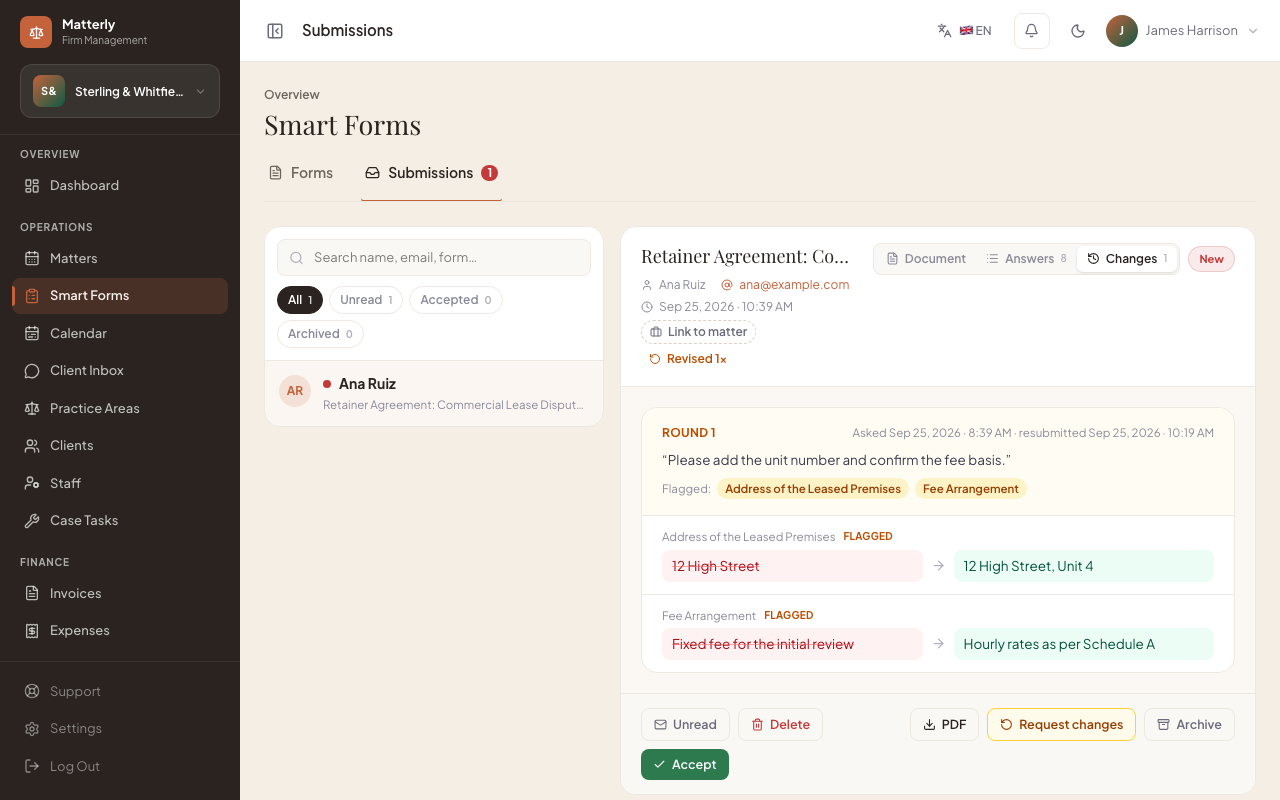
Describe a document and AI drafts it, with the fields a client fills in. Share it through a secure link (optional PIN and expiry), by email, or from a matter. The client fills it in beside a live copy of the document and signs on screen. Both sides are notified, with the completed PDF attached. Then you accept it, or ask the client to correct specific answers and see exactly what they changed.
- Walkthrough with pictures: the public
/smart-formspage ("How it works" on the homepage) - Try it without logging in: Try a live Smart Form on the homepage, or
/try/smart-form - Full guide: Smart Forms
A Super Admin runs the whole platform (firms, plans, billing, AI credits).
Each Firm Admin (and staff) runs one firm’s reception and operations.
Main Features
| Area | What you can do |
|---|---|
| Multi-firm platform | Add firms, assign plans, track subscriptions and platform invoices |
| Practice operations | Practice areas, services, fees, clients, staff, case tasks |
| Matters | A list that shows what needs attention (active matters, fees owed, overdue tasks), and a workspace per matter; the client inbox |
| Smart Forms | AI-drafted documents, secure sharing, e-signature, client receipts, change requests with full history |
| Finance | Client invoices, expenses, caseload and revenue reports |
| Marketing | Website builder, languages/currency, email campaigns, reviews |
| AI | Writing tools, AI staff agents, knowledge base for the chatbot |
| Client website | Public pages, consultation booking and the client portal for each firm |
| Installer | Browser setup wizard for first-time installation |
User Roles
| Role | Who it is | Where they work |
|---|---|---|
| Super Admin | Platform owner | /super/... (firms, plans, settings) |
| Firm Admin / Manager | Firm owner or manager | /admin/... (full firm panel) |
| Staff | Reception, paralegal, accountant, etc. | /admin/... (only the menus they are allowed to see) |
| Client | The firm's client | Public firm website and client portal (enquire, book, pay, chat) |
Staff permissions are set under Firm Admin → Staff. There is no separate Super Admin “Users / Roles” menu; platform access is through the Super Admin account created at install, and firm users are created when you add a firm or add staff.
How this guide is organised
| Guide page | Contents |
|---|---|
| Installation Guide | Requirements and every installer screen |
| Super Admin Guide | Every Super Admin menu |
| Firm Admin Guide | Every Firm Admin menu |
| Smart Forms | Create, share, sign and review documents |
| Matter Workflow | Matter lifecycle |
| Invoice Workflow | Client and platform invoices |
| Email Notifications | Emails Matterly can send |
| Staff & Permissions | Creating users, roles, permissions |
| Reports & Settings | Reports and all settings screens |
| FAQ, Troubleshooting & Best Practices | Common questions and tips |
Demo login (after seeding)
If you installed with demo data, you can try:
| Role | Password | |
|---|---|---|
| Super Admin | [email protected] | password |
| Firm Admin | [email protected] | password |
| Receptionist | [email protected] | password |
| Paralegal | [email protected] | password |
Change these passwords on any live (production) site.
Tip: Impersonation
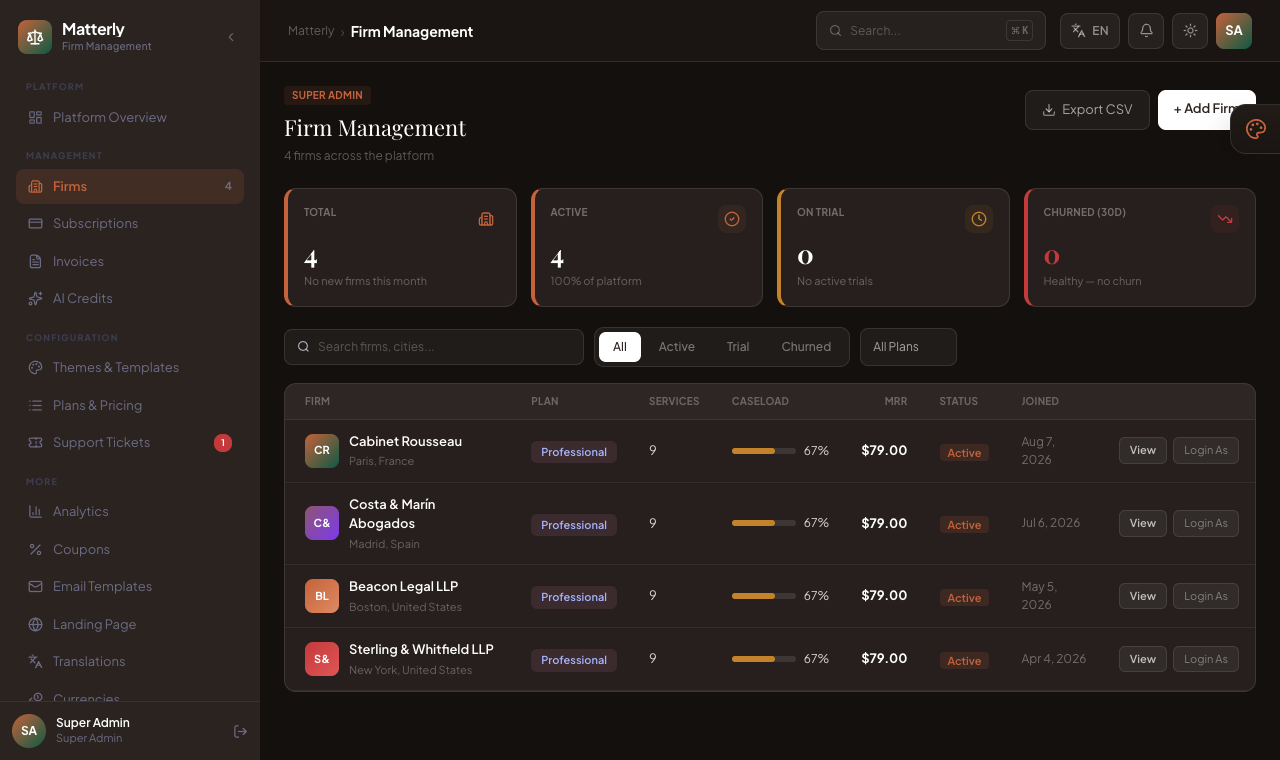
From Super Admin → Firms, you can Impersonate a firm. An orange banner appears while you are acting as that firm. Click Exit Impersonation to return to the platform view.
Example: a Super Admin impersonating a firm. The firm dashboard shows an orange banner.