Firm Admin Guide
Updated Oct 18, 2026
Firm Admins (and permitted staff) work at /admin/... after login.
If a Super Admin impersonates your firm, you will see an orange banner at the top. Normal firm users do not see that banner.
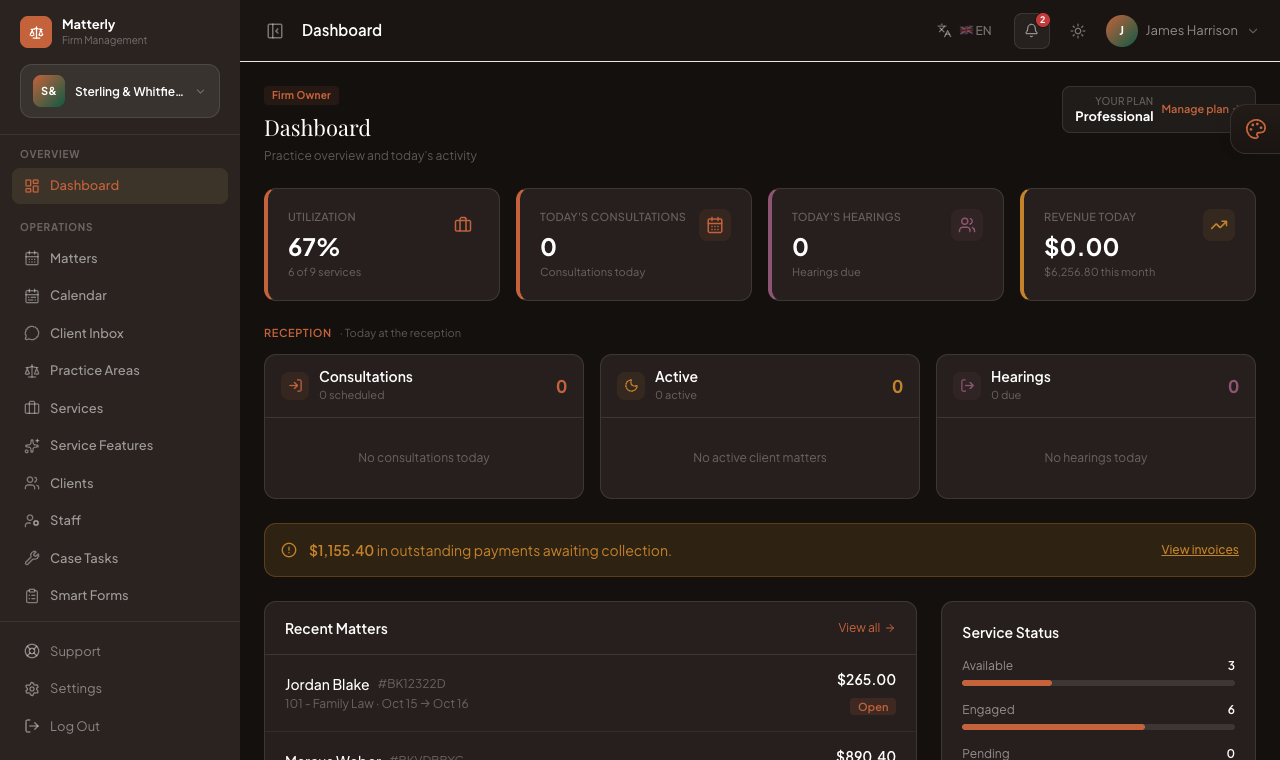
Firm Admin Dashboard: key figures, recent matters, the reception day sheet and quick actions.
After you log in
- Open
/loginand enter your firm email and password. - You arrive at Dashboard.
- Use the left sidebar for operations, finance, AI, and marketing.
- Staff only see menus allowed by their permissions.
Dashboard
URL: /admin/dashboard
Purpose: Today’s snapshot of the practice.
Information displayed
| Card / section | Meaning |
|---|---|
| Active Matters | Matters confirmed or in progress |
| Today’s Consultations | Consultations scheduled for today |
| Today’s Hearings | Hearings due today |
| Revenue Today | Money recorded today (and month context) |
| Recent Matters | Latest matters with client, service, dates, amount, status |
| Reception day sheet | Today’s consultations, active matters and hearings |
| Quick Actions | Shortcuts: New Matter, New Client, Smart Forms, AI Tools, Case Tasks |
Typical actions
- View all on recent matters → Matters list
- Open Case Task Board → Case Tasks
- + New Matter / + New Client → create forms
Matters
URL: /admin/matters
Purpose: Manage all client matters.
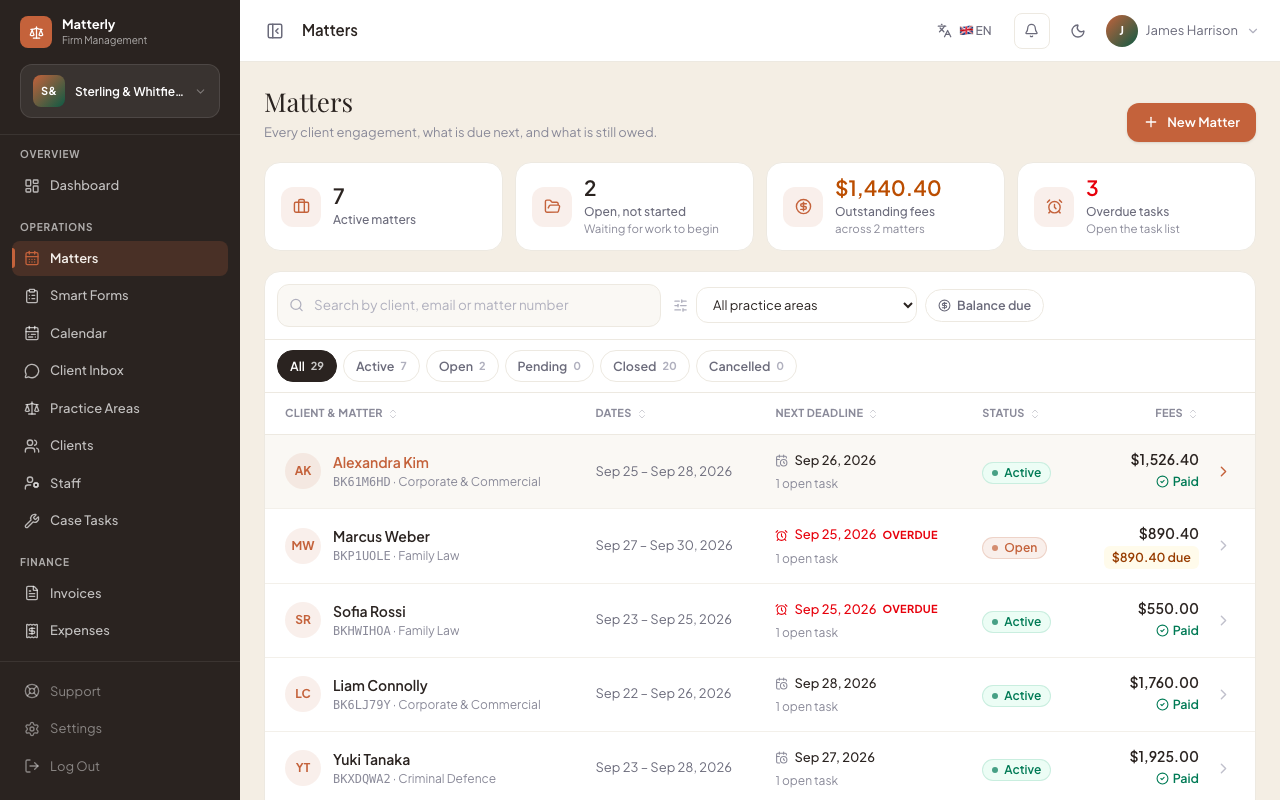
What you see
- Four cards: Active matters, Open, not started, Outstanding fees, Overdue tasks (click one to filter)
- Search by client, email or matter number (as you type), filters for practice area, balance due and status (with counts)
- Each row: client, matter number (
MAT-…), practice area, dates, next deadline, status and fees (Paid, or amount due)
Actions
| Action | When to use |
|---|---|
| New Matter | A new matter entered by staff |
| Click a row | Open the matter workspace |
| Edit | Change dates, client or practice area (not after close/cancel) |
| Mark active | Work begins (status must be Open); the matter becomes Active |
| Close matter | Work is finished (status must be Active) |
| Cancel | Stop the matter; optional reason |
Details: Matters. Full lifecycle: Matter Workflow.
Smart Forms
URL: /admin/smart-forms (second item in the sidebar, under Matters)
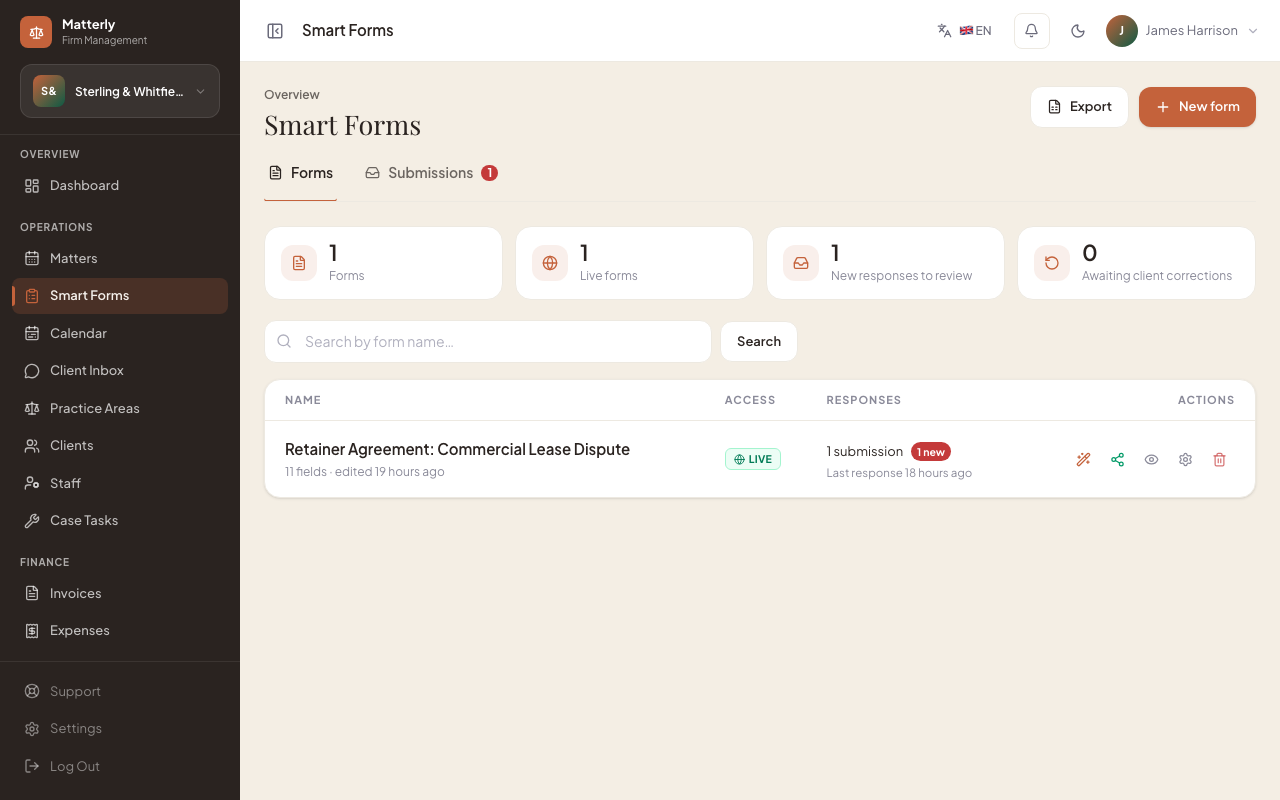
Purpose: Legal documents clients fill in and sign online.
Actions
| Action | What it does |
|---|---|
| New form | Draft with AI from a description, or start blank |
| Builder | Drag fields into the document, edit the wording, Save form |
| Share | Secure link (on/off, PIN, expiry), email, or send from a matter |
| Settings | Name, intro note, submit label, staff notifications |
| Submissions | Read, download PDF, link to a matter, Accept, Archive, Request changes |
| Changes | For resubmitted responses: each round's request and every answer that changed |
Full guide: Smart Forms.
Client Inbox
URL: /admin/inbox
Purpose: Read and reply to client conversations (website chatbot and WhatsApp when connected).
What you see
- Conversation list (priority for messages that need a human)
- Thread view with history
- Connection status for WhatsApp (if configured)
Actions
- Open a conversation
- Reply to the client
- Hand off from bot to staff when needed
Configure WhatsApp under Settings → Integrations (firm) and platform WhatsApp under Super Admin → Settings.
Practice Areas
URL: /admin/practice-areas
Purpose: Define the practice areas you offer and their consultation fees.
What you manage
- Name, description, consultation fee
- Photos / media
- Active / inactive
Workflow
- Create a practice area (e.g. Family Law).
- Set its consultation fee.
- Add images.
Clients
URL: /admin/clients
Purpose: Client profiles: a contact book and matter history for your firm.
What you see
- Searchable client list
- Contact details, matter count, loyalty points (if used)
Actions
- Create / edit client
- Open client profile and related matters
- Start a matter from client context when available
Staff
URL: /admin/staff
Purpose: Firm users and what they can access.
See Staff & Permissions.
Case Tasks
URL: /admin/case-tasks
Purpose: Track case work and deadlines across your matters.
What you see
- Pending tasks, most urgent first
- The matter each task belongs to
- Assignees and scheduled dates
Actions
- Create a task (Filing, Document Review, Research, Client Call, Court Prep)
- Assign staff
- Start, complete or cancel tasks
Invoices
URL: /admin/invoices
Purpose: Client invoices (bills for matters and disbursements).
See Invoice Workflow.
Expenses
URL: /admin/expenses
Purpose: Track firm operating costs.
Actions
- Add expense (category, amount, date, notes)
- Edit / delete
- Review month/year totals
Reports
URL: /admin/reports
Purpose: Practice performance summaries.
See Reports & Settings.
Billing
URL: /admin/billing
Purpose: Manage what your firm pays Matterly for its subscription (this is separate from client invoices).
What you see
- Current plan, status, billing cycle, amount, and next renewal date
- The card on file the platform charges (brand and last 4 digits)
- Auto-renew toggle
- Your platform (subscription) invoice history
Actions
| Action | Effect |
|---|---|
| Add / update card | Opens the payment gateway's secure hosted page to save a card |
| Remove card | Deletes the saved card |
| Auto-renew | Turn automatic subscription charging on or off |
Note: Automatic subscription charging only runs when the platform owner has configured platform payment keys. Otherwise the platform bills you manually.
Support
URL: /admin/support
Purpose: Raise and track support requests to the platform team.
Actions
- Create a ticket (subject, priority, category, message)
- Follow the conversation and see status updates on each ticket
- Receive email + in-app notifications when support replies or resolves your ticket
Note: If your plan includes Priority Support, you can raise high/urgent tickets and they are flagged for the platform team.
AI Assistant
URL: /admin/ai
Purpose: On-demand AI writing and insights (uses firm AI credits).
Typical tools
- Service description generator
- Email writer
- Review response helper
- Marketing copy
- Revenue insights
- Fee Advisor: suggests a fee for a practice area and dates, based on your current workload
- Ask Your Data: answers plain-English questions about your firm's numbers
- Review Insights: summarises all client reviews into what clients love and what to improve
The badge on the menu shows remaining credits. Top-ups come from Super Admin → AI Credits.
AI Staff
URL: /admin/ai-staff
Purpose: Semi-automated agents (reviews, client comms, case-tasks, revenue).
Actions
- Enable agents and set budgets
- Review pending drafts
- Approve or dismiss suggestions
- Optionally allow auto-send where offered
Always review client-facing drafts before approving.
Knowledge Base
URL: /admin/knowledge-base
Purpose: The documents the AI chatbot reads to answer client questions. You upload your own information (policies, FAQs, directions) and the chatbot answers from it.
Actions
- Upload / manage knowledge documents
- Review unanswered questions / gaps
- Reindex after major content changes (this re-reads your documents so the chatbot uses the latest version)
Website Builder
URL: /admin/website
Purpose: Build and publish the public firm site.
Actions
- Create pages
- Edit blocks in the builder
- Use AI page generation from a short brief (if credits allow)
- Publish or keep as draft
- Toggle whether the site is live / direct
Clients visit /firm/{your-slug} (or your custom domain when configured).
Languages & Currency
URL: /admin/localization
Purpose: Multi-language and multi-currency display for the public site.
Actions
- Enable locales and currencies
- Set exchange rates
- Edit translation strings
- Optionally use AI to help translate
Email Campaigns
URL: /admin/email-campaigns
Purpose: Marketing emails to client audiences.
Actions
- Create a campaign
- Choose audience (e.g. all clients, recent, returning)
- Send and review open-rate style stats
Requires working SMTP (platform settings).
Reviews
URL: /admin/reviews
Purpose: Collect, moderate, and reply to client reviews.
Actions
- List / filter reviews by status (all, pending, published, hidden)
- Add or edit a review record (name, rating, source, comment, reply, status)
- Moderate: reviews left by clients on your website arrive as Pending. Approve (publish) a review to have it appear on your site and count toward your public star rating, or Hide spam/inappropriate ones. Replying also publishes it.
- Reply to clients (your reply is shown publicly on the review)
- The Public rating KPI is the average of your published reviews only, and it shows how many published reviews it's based on
Note: Your website's "What our clients say" section and the star rating in search results only ever use published reviews. Pending and hidden reviews are never used.
Settings
URL: /admin/settings
Purpose: Firm-specific configuration (general, tax, policies, payments, integrations/WhatsApp, theme, domain, API access, notifications). Each tab has a save bar showing whether there are unsaved changes.
Details: Firm Settings and Reports & Settings.