Invoices
Updated Oct 18, 2026
Matterly has two invoice concepts:
| Type | Who bills whom | Where |
|---|---|---|
| Client invoice | Firm → Client | Firm Admin → Invoices |
| Platform invoice | Platform → Firm | Super Admin → Invoices |
This chapter covers both.
Client invoices (Firm Admin)
Purpose
Bill the client for the matter and disbursements.
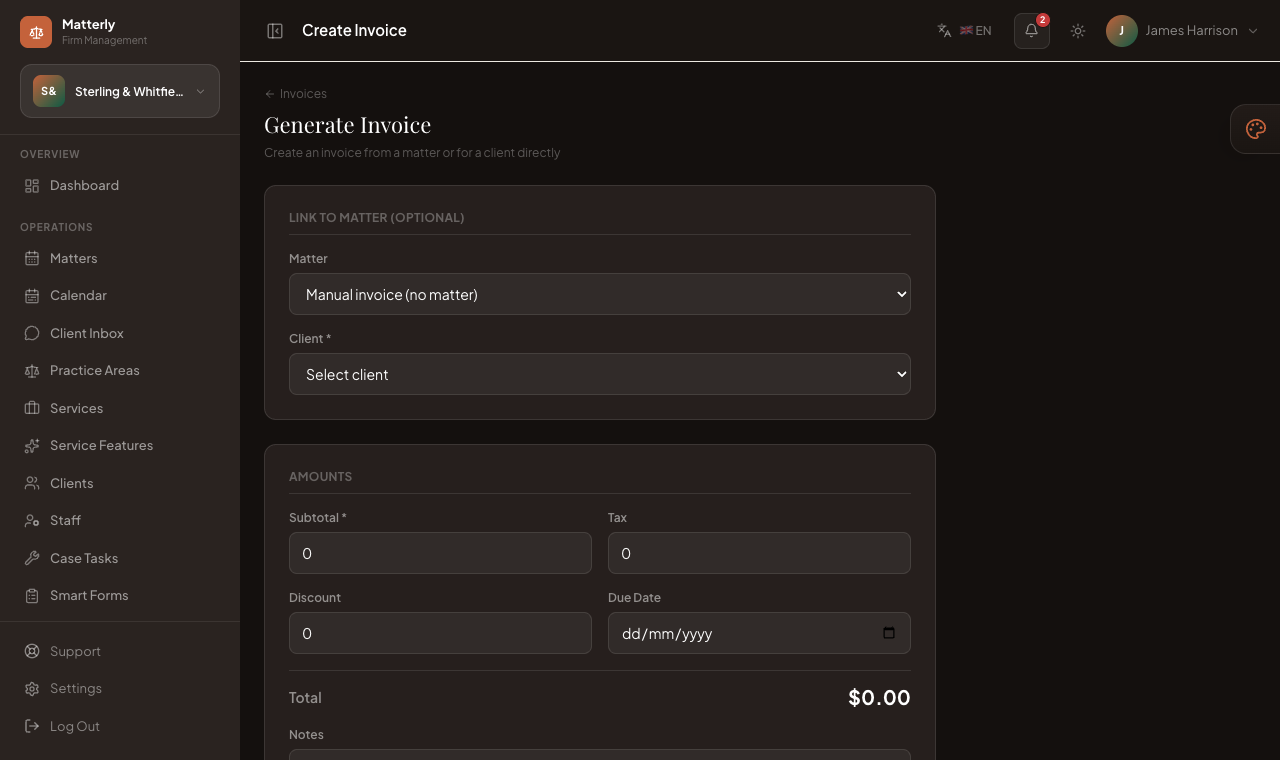
Generate invoice
Invoices are often created automatically when a matter is created.
You can also:
- Go to Invoices → Create.
- Link a matter (or client).
- Enter subtotal, tax, discount, due date, notes.
- Save it, usually as Draft.
Draft
- Draft invoices are internal.
- Review line items and totals before sending.
Generate & Send / Send Invoice
- Open the invoice.
- Click Send (or Re-send).
- Status moves toward Sent.
- Client receives the Invoice email if they have an email and SMTP is working.
Record payment
- Open the invoice.
- Record Payment: amount + method.
- Status becomes Partially paid or Paid.
Download PDF
Use Download PDF / PDF link on the invoice page to print or attach manually.
Email customer
Sending the invoice is the built-in way to email the customer. Re-send if they did not receive it. Confirm SMTP under Super Admin → Settings → Email.
Client invoice status guide
| Status | Meaning |
|---|---|
| Draft | Not sent yet |
| Sent | Emailed / issued to client |
| Overdue | Past due (when tracked) |
| Partially paid | Some money received |
| Paid | Fully settled |
Filters on the invoices list help you find unpaid vs paid invoices.
Platform invoices (Super Admin)
Purpose
Bill a firm for subscription or platform charges.
Workflow
- Open Super Admin → Invoices (or create from Subscriptions).
- Choose the firm and line items.
- Apply a coupon if available.
- Save draft or Generate & Send to email the firm.
- Track paid vs outstanding.
Platform invoice email uses the platform mailer (separate from client invoice templates).
Payment methods (client)
When recording payment you can use methods such as:
- Cash
- Card
- Bank transfer
- UPI
- Stripe / Razorpay / PayPal / LigdiCash
- Other
Online checkout methods must be enabled under Firm Settings → Payments with valid keys.