Matters
Updated Oct 18, 2026
Overview
Matters (/admin/matters) is the list of every client engagement, and each matter opens into a workspace with
its tasks, billing, forms, messages and history.
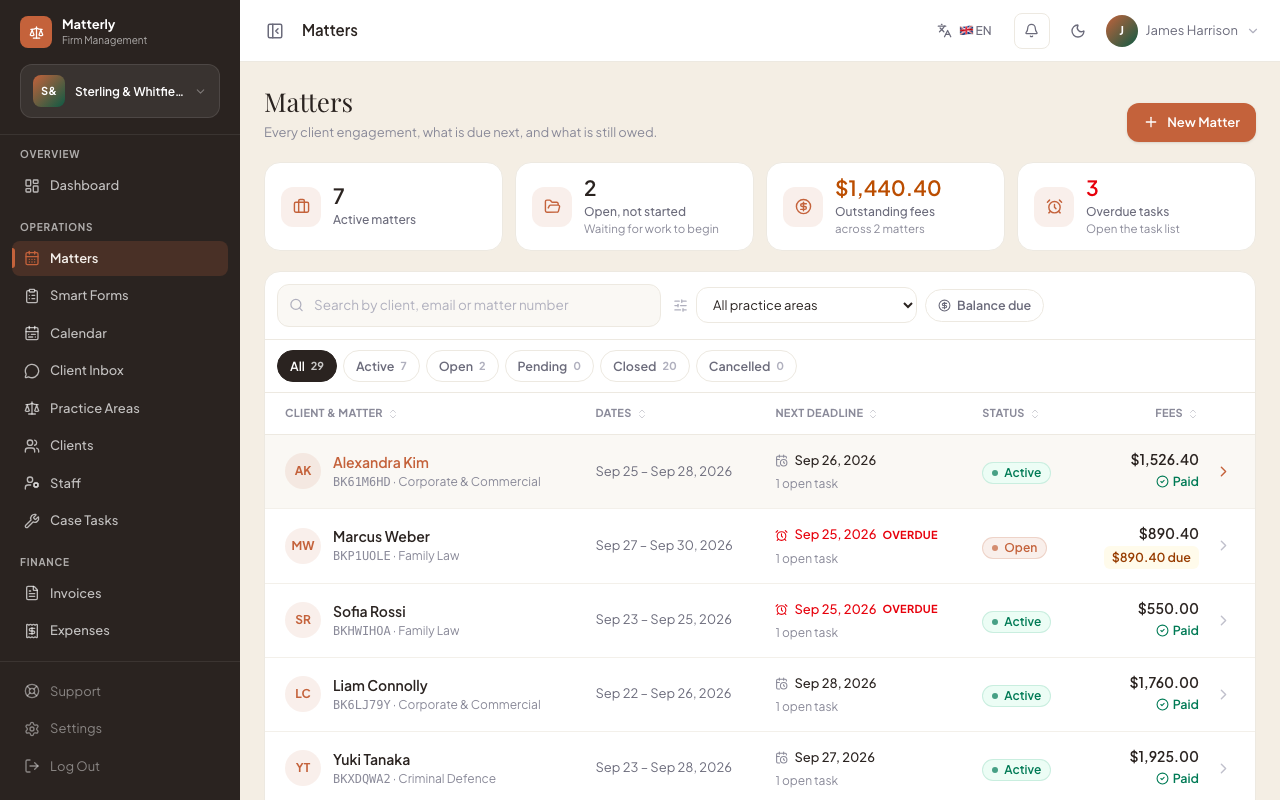
The matters list
At the top, four cards show what needs attention. Click a card to filter the list; click it again to clear.
| Card | Shows |
|---|---|
| Active matters | Matters where work is under way |
| Open, not started | Accepted matters waiting for work to begin |
| Outstanding fees | Total still owed, and on how many matters |
| Overdue tasks | Open case tasks past their date (opens the task list) |
Finding a matter
- Search by client name, client email or matter number. Results update as you type.
- Filter by practice area, by Balance due, or by status using the chips (each shows its count).
- Clear filters resets everything.
- Sort by matter, dates, next deadline, status or fees.
Each row shows the client, the matter number and practice area, the dates, the next deadline (the nearest open task, in red with Overdue when it has passed, plus how many tasks are open), the status and the fees (Paid, or the amount still due). Click anywhere on a row to open the matter. On a phone each matter is a card.
New matters get a reference like MAT-7K2Q9D.
Board view: switch List to Board to see open matters as cards in stage columns and drag them between stages. See Matter Board & Stages. Both views can filter by a custom field.
Statuses
Pending → Open → Active → Closed (or Cancelled). See Matter Workflow for what each means.
The matter workspace
The header shows the client, status, stage, matter number, practice area and opening date, with the next step one click away: Mark active when the matter is Open, Close matter when it is Active. + Add creates a note, a call log or a task (keyboard: N, L, T).
Below the header, four cards summarise the matter: the next date (red if overdue), the balance due, the open tasks (with how many are overdue) and the client's contact details. Click a card to jump to the matching tab.
| Tab | What's there |
|---|---|
| Overview | What's coming up, open tasks, matter details, case details and recent activity |
| Work | Case tasks, with assignees and due dates |
| Billing | Invoices, payments and balance for this matter |
| Forms | Smart Forms sent to the client for this matter, and their responses. See Smart Forms |
| Communications | Inbox conversations, every message sent to the client (with its status), and AI Staff drafts |
| Activity | The full history, newest first |
Staff only see the tabs their role allows.
Practice Calendar
The Calendar (/admin/calendar) brings the practice's dated work into one view: hearings, deadlines, meetings,
consultations, case tasks and invoice due dates.
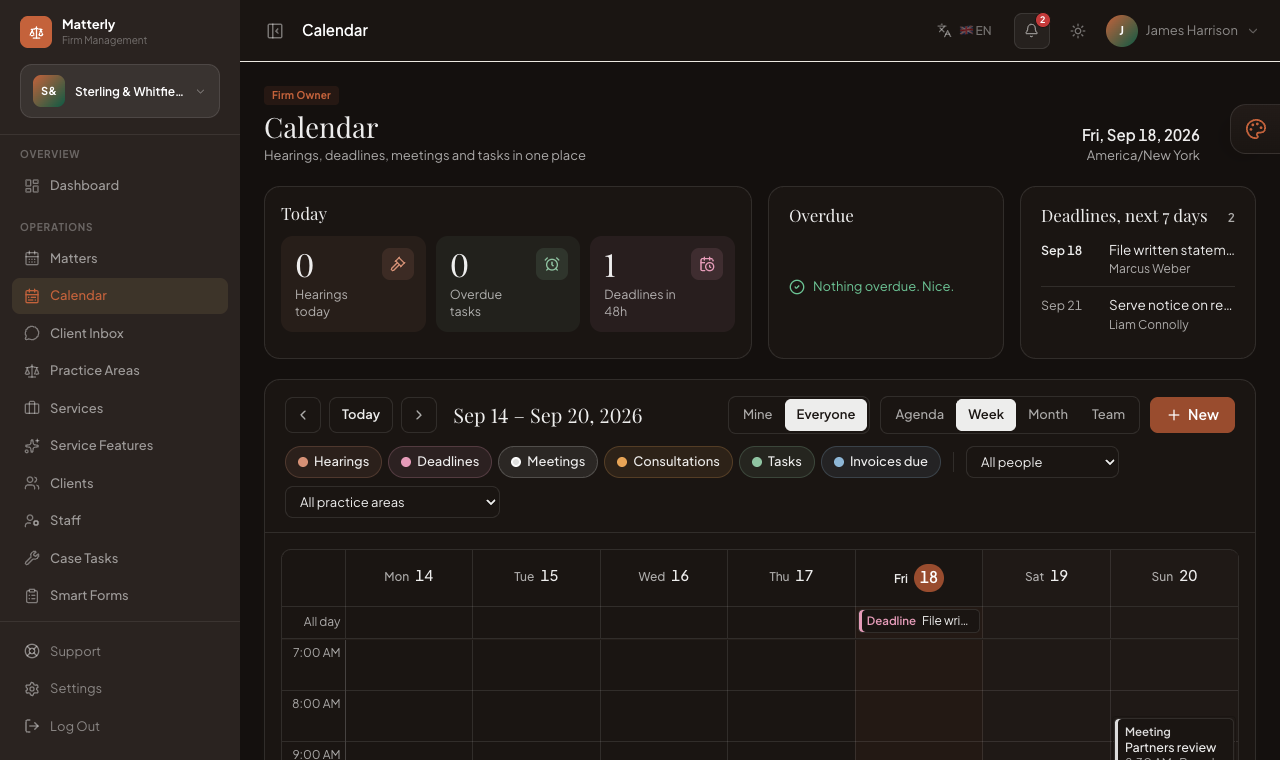
- Switch between Agenda, Week, Month and Team views, and filter by type or by person.
- Click an item to open it, or click a date to add a hearing, deadline or meeting.
- Drag an item to reschedule it; the card follows the pointer and the target day is highlighted. Items set by the court are locked and ask you to confirm before moving.
Step-by-step: create a matter
- Click New Matter.
- Select or create a client.
- Choose the practice area and the matter dates.
- Save. Matters created by staff usually start as Open.
- If the client has an email address, they receive a confirmation email.
Step-by-step: start and close
- Open the matter.
- Click Mark active when work begins (the matter must be Open).
- Click Close matter when the work is finished (the matter must be Active).
- Settle any remaining balance on the Billing tab.
Warning: Closed and cancelled matters can no longer be edited.
Best practices
- Check the client's email before saving, so confirmations and Smart Forms reach them.
- Start each morning on the list with the Overdue tasks and Outstanding fees cards.
- Send documents from the matter's Forms tab so responses file themselves on the case.