Installation
Updated Oct 18, 2026
This chapter walks through the web installer at /install. Follow the screens in order. When finished, Matterly creates a lock file so the installer cannot run again.
System Requirements
Before you start, make sure your server has:
| Requirement | Notes |
|---|---|
| PHP 8.2+ | With extensions: BCMath, Ctype, JSON, Mbstring, OpenSSL, PDO, PDO MySQL, Tokenizer, cURL |
| MySQL 8+ (or MariaDB 10.6+) | Empty database recommended |
| Web server | Document root must point to the public/ folder |
| Writable folders | storage/ and bootstrap/cache/ must be writable by the web server |
| HTTPS (production) | Strongly recommended for live firms |
You also need a domain or URL (for example https://matterly.example.com or http://127.0.0.1:8000 for local testing).
Running the Installer
-
Upload the Matterly files to your server (or clone the project locally).
-
Point the domain to the
publicdirectory. -
Open:
https://your-domain.com/install -
Complete each step below. Do not close the browser until you see Installation Complete.
Step 1: Welcome Screen
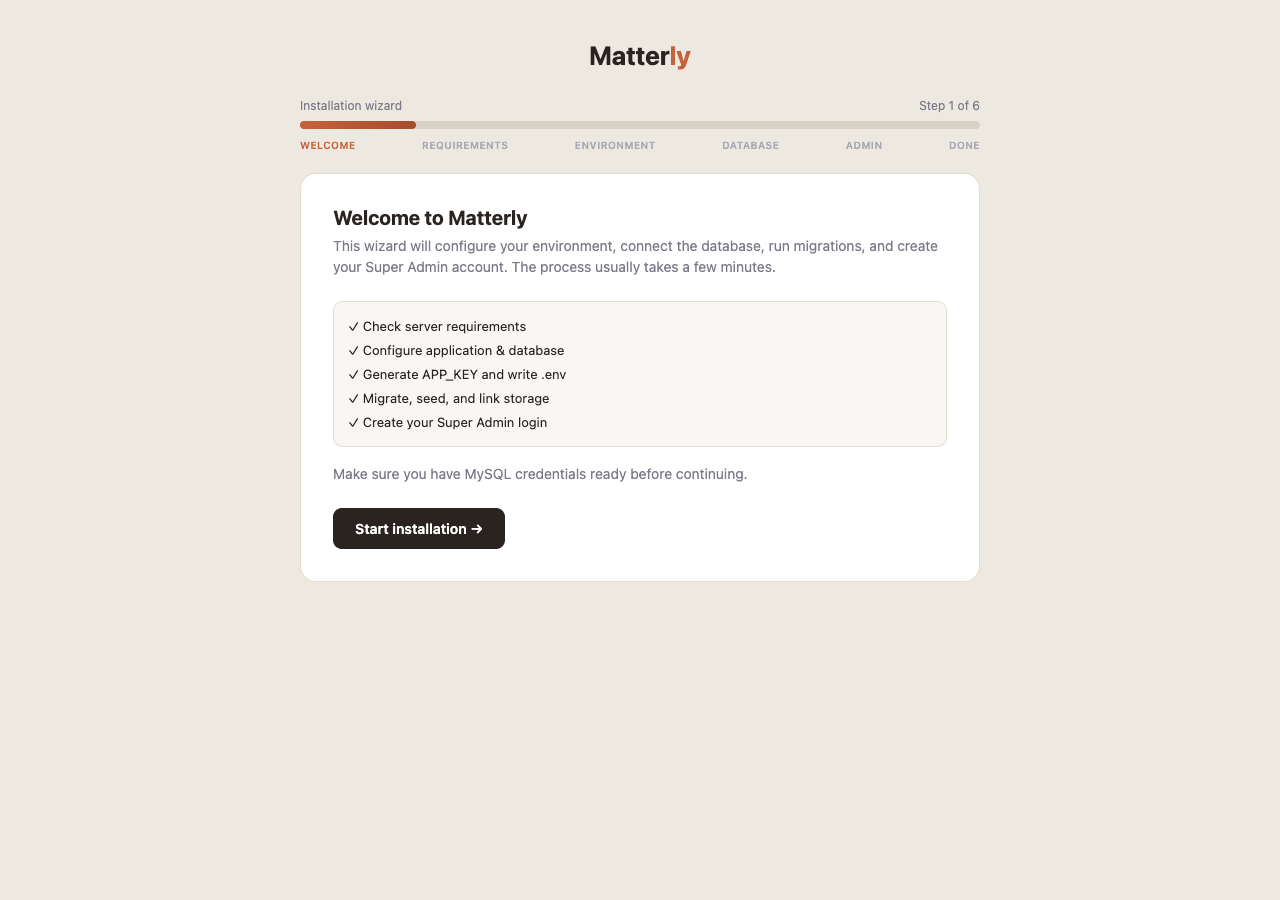
What you see: A short introduction explaining that Matterly will guide you through setup.
What to do: Click Start installation (or equivalent Continue button).
No form fields on this screen.
Step 2: Requirements Check
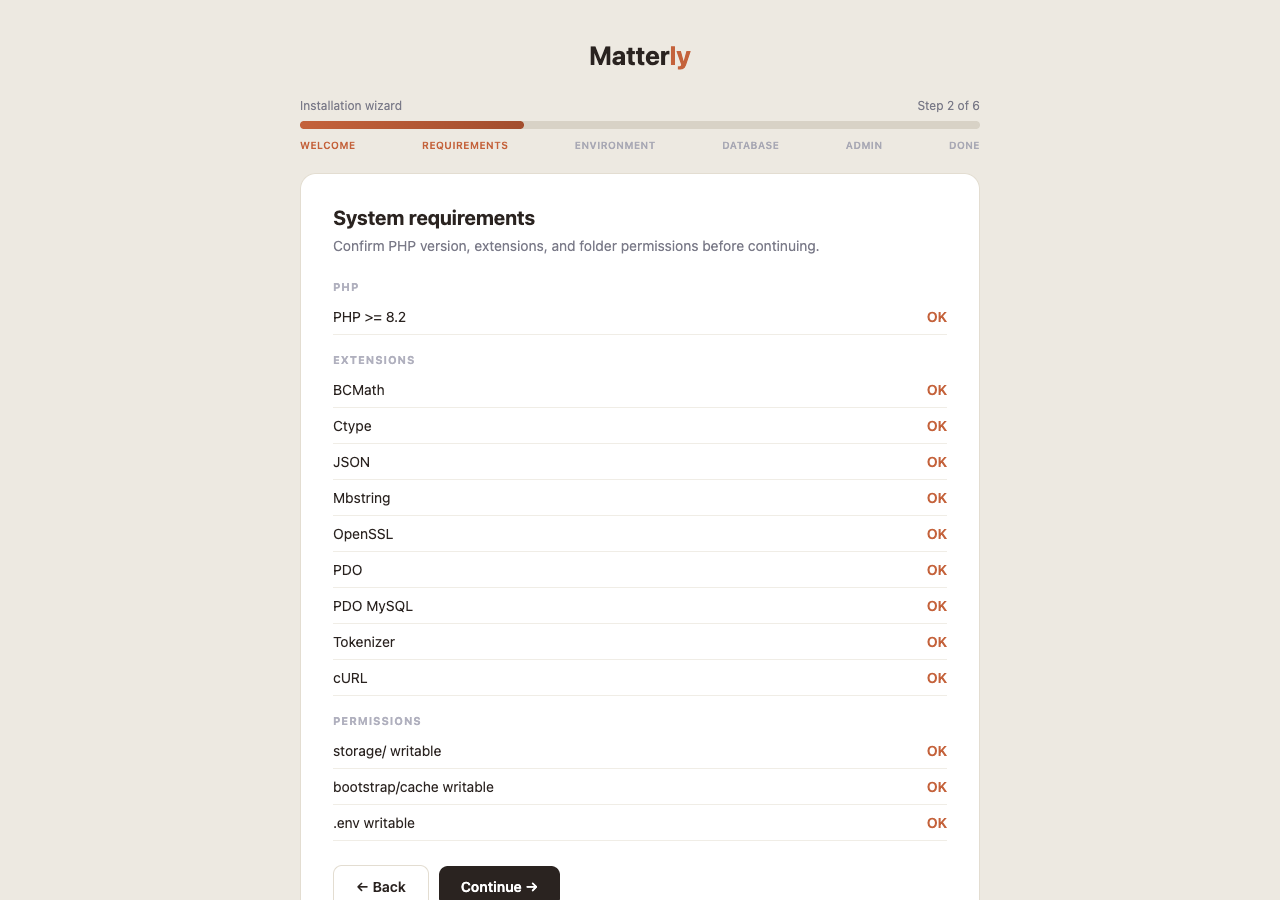
Purpose: Confirm your server can run Matterly.
What is checked:
- PHP version
- Required PHP extensions
- Folder permissions (
storage,bootstrap/cache, and related paths)
What to do:
| Result | Action |
|---|---|
| All items pass (green) | Click Continue |
| Something fails (red) | Fix the issue on the server, then click Re-check |
Folder Permissions
If permissions fail:
-
On Linux, ensure the web user owns or can write to:
chmod -R ug+rwx storage bootstrap/cache -
Recheck in the installer until everything passes.
Step 3: Environment Configuration
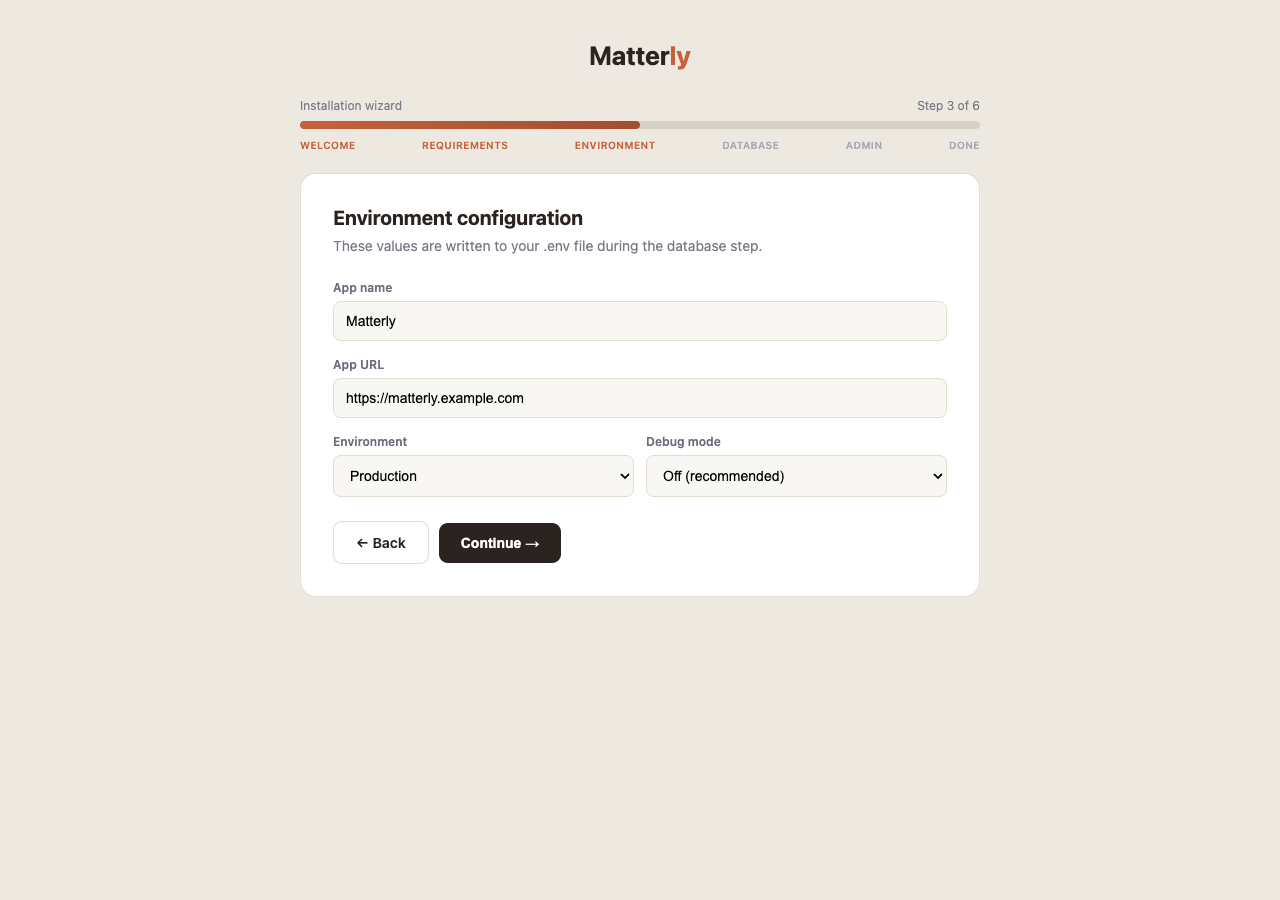
Purpose: Set basic application identity and mode.
Fields to enter:
| Field | What to enter |
|---|---|
| App Name | Display name, e.g. Matterly |
| App URL | Full URL with no trailing slash, e.g. https://firms.example.com or http://127.0.0.1:8000 |
| Environment | production for live; local for development; staging optional |
| Debug | Leave off (false) on production. Only enable for debugging |
APP_KEY: Matterly generates a secure application key automatically during install. You do not paste an APP_KEY manually on this screen.
Click Continue / Save when done.
Step 4: Database Configuration
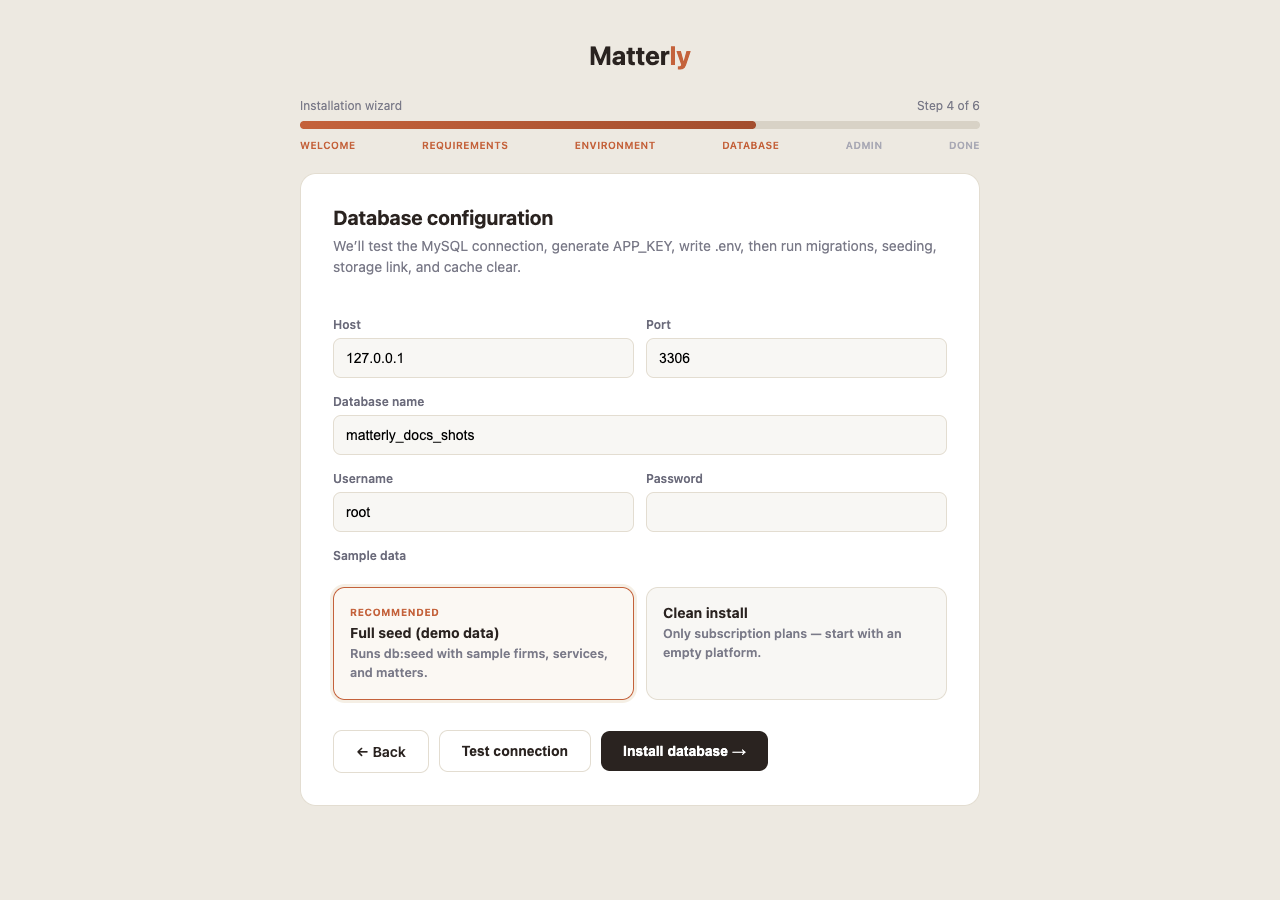
Purpose: Connect Matterly to MySQL and create tables.
Fields to enter:
| Field | What to enter |
|---|---|
| Host | Usually 127.0.0.1 or localhost |
| Port | Usually 3306 |
| Database name | Empty database you created, e.g. matterly |
| Username | MySQL user with rights on that database |
| Password | That user’s password |
| Seed demo data | Yes: installs the sample firm (Sterling & Whitfield LLP) and demo logins. No: clean install with only your Super Admin |
Recommended buttons:
-
Click Test connection first. Fix host/user/password if it fails.
-
Click Install / Continue to:
- Write database settings to
.env - Generate / confirm
APP_KEY - Run migrations (create all tables)
- Run seeders (demo data if you chose that option)
- Prepare storage links and caches as needed
- Write database settings to
Wait until the step finishes. A long pause is normal on first migrate.
Step 5: Create Super Admin
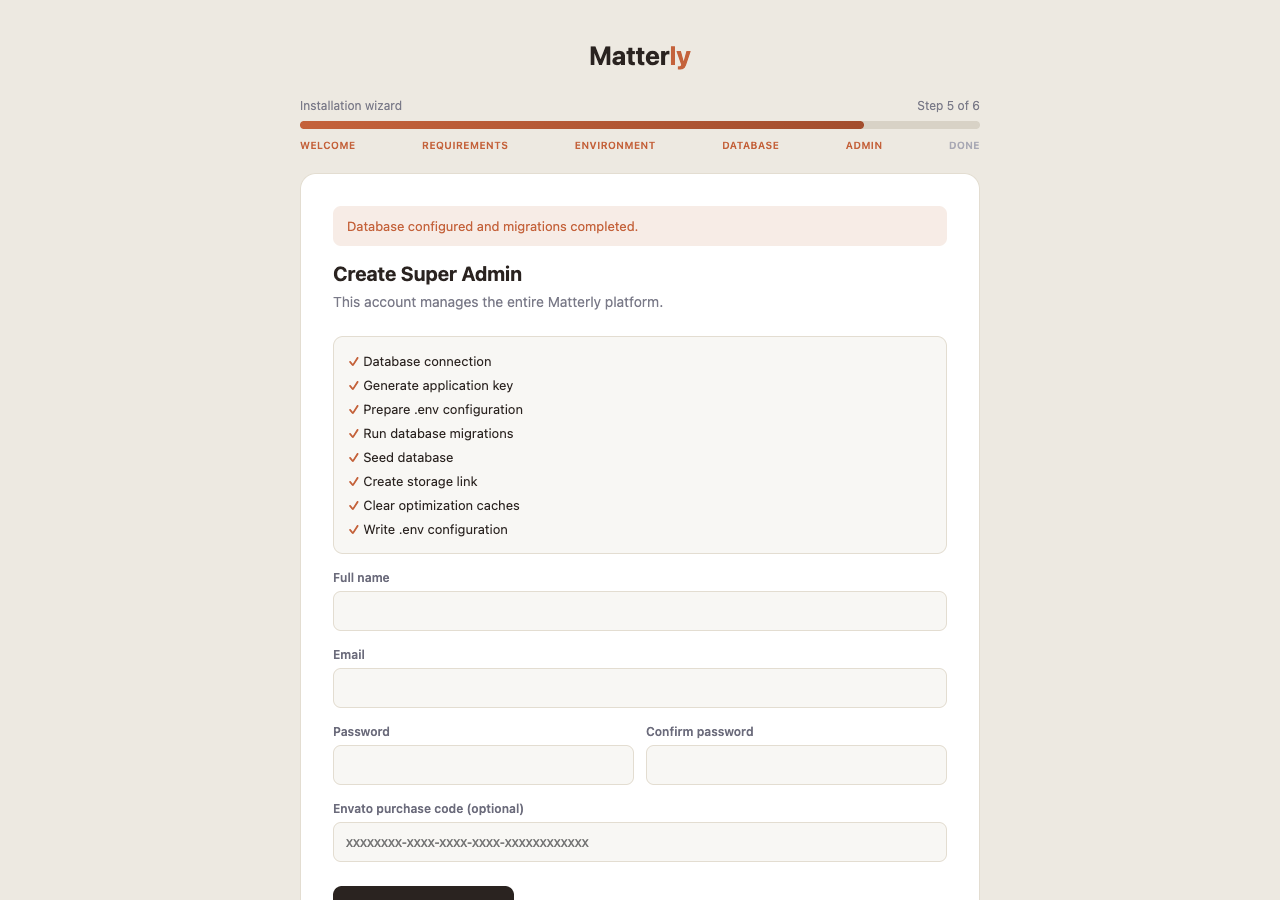
Purpose: Create the first platform administrator account.
Fields to enter:
| Field | What to enter |
|---|---|
| Name | Your full name |
| Login email (must be unique) | |
| Password | Strong password |
| Confirm password | Same password again |
| License code (optional) | Envato / purchase code if you use license verification |
Submit the form. Matterly creates the Super Admin user and locks the installer (storage/installed).
Step 6: Installation Complete
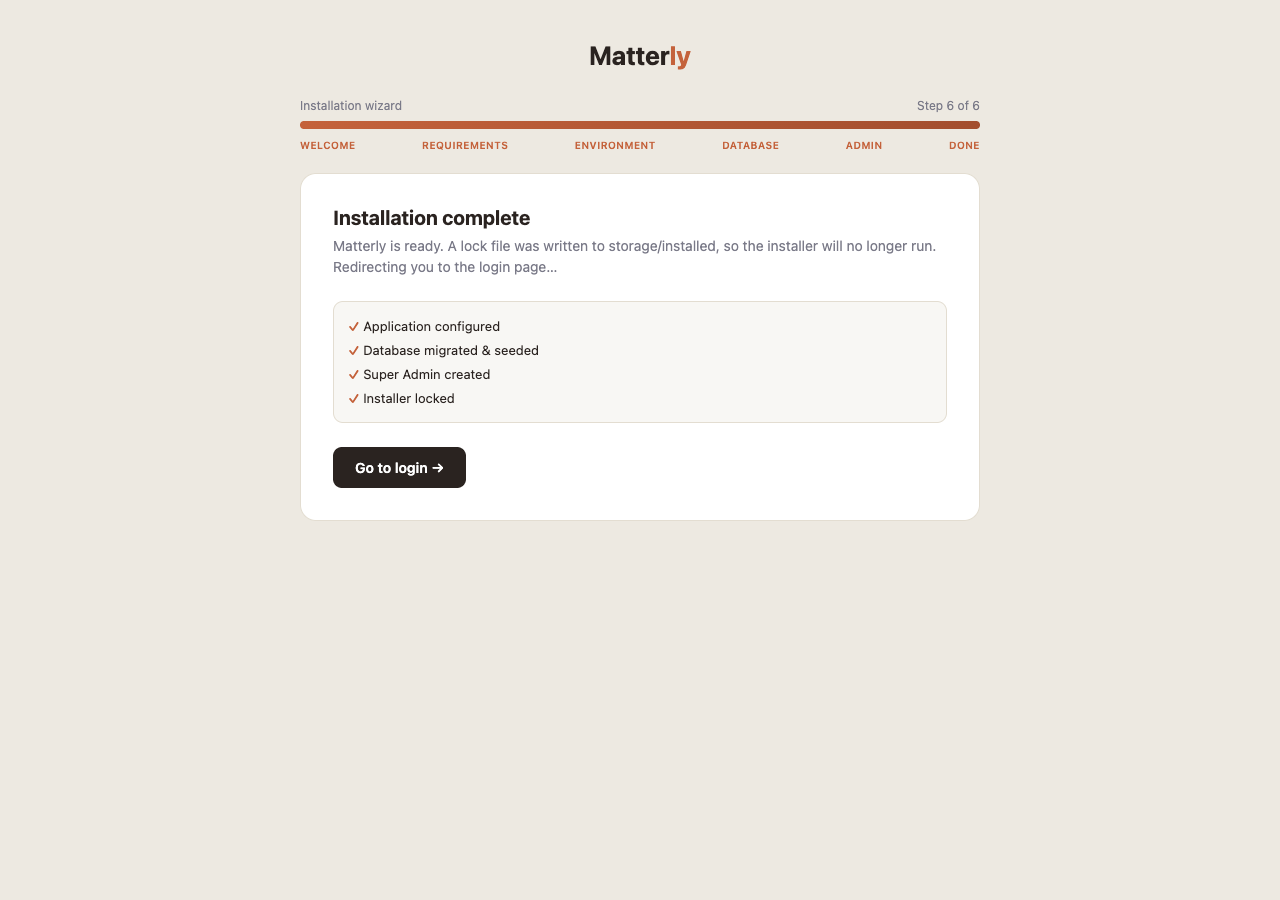
What you see: A success message.
What happens next:
- You are redirected to Login (
/login) /installis no longer available for setup
Log in with the Super Admin email and password you just created.
After Installation Checklist
- Open Super Admin → Settings and configure SMTP (so emails work).
- Configure OpenAI if you plan to use AI features.
- Create or review Plans, then add your first Firm.
- Optionally open http://your-domain.com/docs for this user guide.