Overview
Updated Oct 19, 2026
Accessing the Panel
yourdomain.com/manage
The Business Panel is the day-to-day workspace for every tenant. Owners, providers, and staff each see a view tailored to their role.
Required roles to access:
| Role | Badge | Can Access |
|---|---|---|
| tenant_owner | Owner | Full panel — services, providers, staff, bookings, settings |
| provider | Provider | Bookings only (their own) |
| staff | Staff | Bookings only (all) |
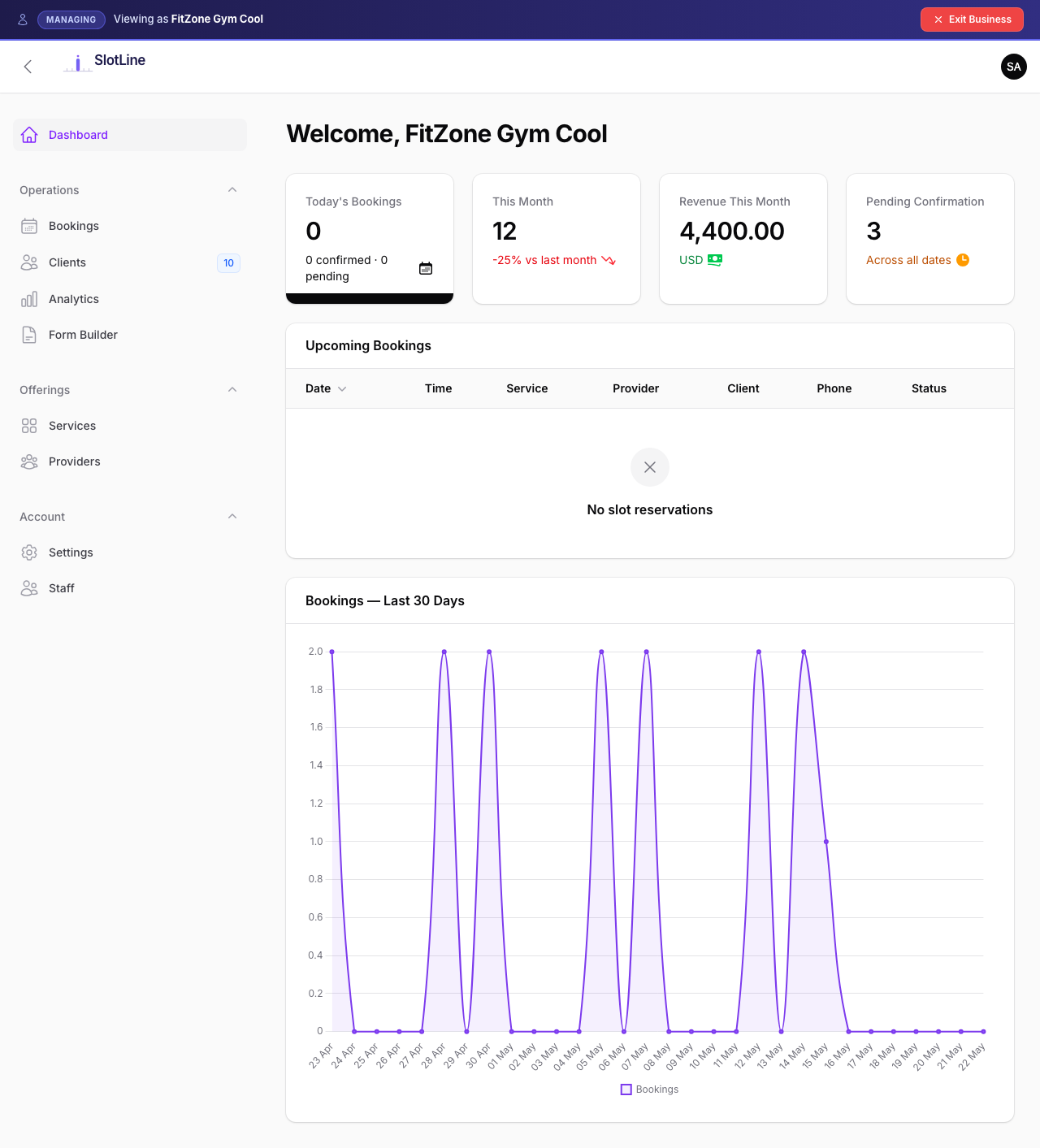
Panel Sections
| Section | Who Can Access | Purpose |
|---|---|---|
| Dashboard | All roles | Today's stats — confirmed, pending, cancelled bookings |
| Bookings | All roles | View, filter, create, and manage all bookings |
| Services | Owner only | Create and configure bookable services |
| Providers | Owner only | Manage provider profiles and working hours |
| Staff | Owner only | Manage staff accounts and access |
| Clients | Owner only | Client history, lifetime spend, top services |
| Notification Preferences | All roles | Per-user email and in-app notification opt-ins |
| Profile | All roles | Account details and password |
| Add-on pages | Depends on the add-on | Pages from add-ons the platform has installed and the business's plan includes, e.g. Payments → Invoices (Invoices) |
Note: Role-based visibility — Staff and Providers see a simplified sidebar. Sections like Services, Clients, and Settings are hidden entirely from their view — not read-only, just absent.
Navigation Badges
The sidebar shows live counts so staff always know what needs attention:
| Nav Item | Badge Shows | Colour |
|---|---|---|
| Bookings | Today's pending + confirmed bookings count | Yellow |
| Clients | Total distinct clients (unique by email) | Blue |
Tip: Badges update in real time as bookings are created or status changes. No page refresh needed.
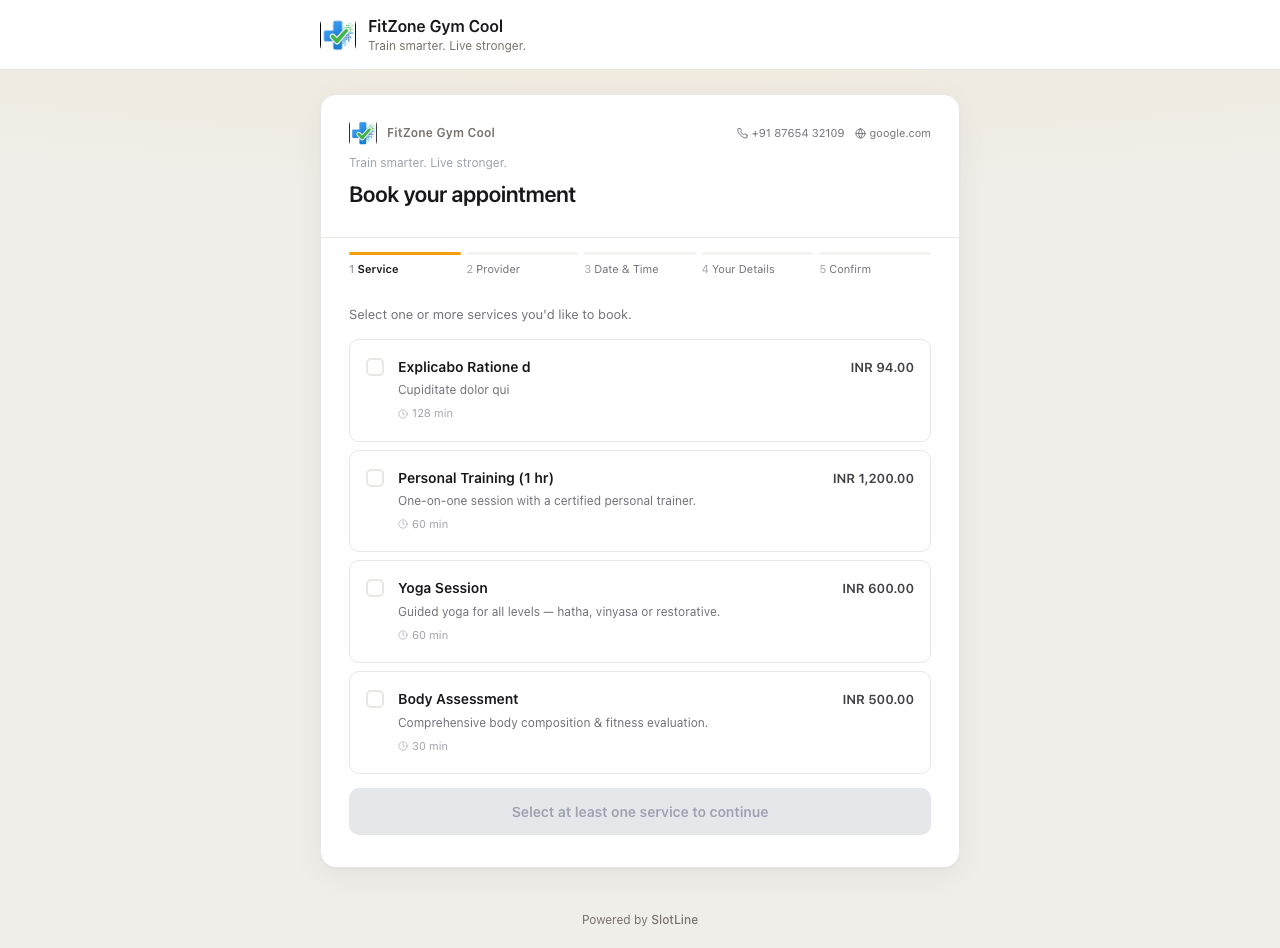
Public Booking Page
Every tenant gets a unique public URL for their customers:
https://yourdomain.com/{slug}
The {slug} is set when the business is created and must be unique across the platform.
What the booking page shows:
Customer visits /b/my-salon
        ↓
Browses active services (name, price, duration, image)
        ↓
Selects a service → chooses a provider
        ↓
Picks an available date and time slot
        ↓
Fills in name, email, phone, optional notes
        ↓
Free service → booking confirmed immediately
Paid service → redirected to Stripe Checkout
        ↓
Confirmation email sent with cancellation link
Warning: The booking page only works when the business has at least one active service with an active provider assigned. An empty business shows "not available" to customers.