Services
Updated Oct 18, 2026
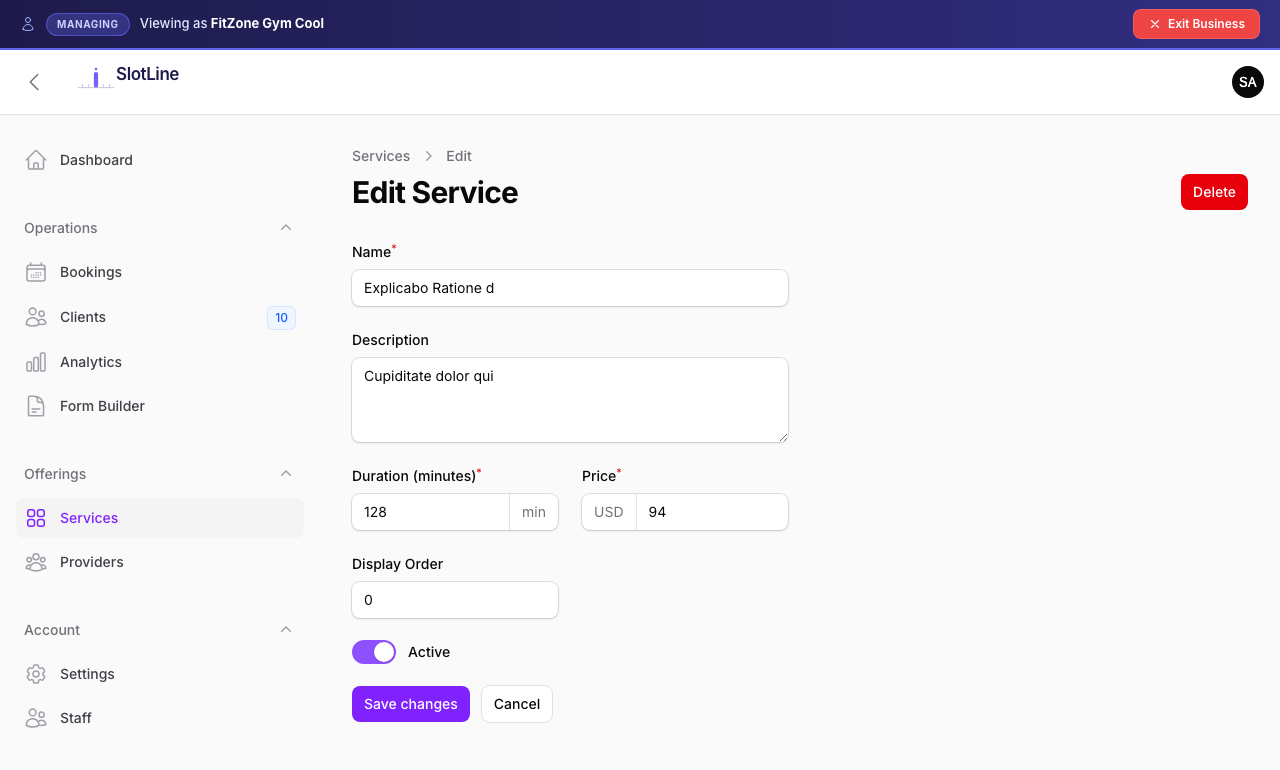
Service Fields
Business Panel → Services
| Field | Type | Description |
|---|---|---|
| Name | Text | Shown on the public booking page |
| Description | Textarea | Short blurb — displayed on the service card |
| Duration | Minutes | Used to calculate available time slots |
| Price | Decimal | Display price. Set to 0 for a free service |
| Requires Payment | Toggle | When on, triggers Stripe Checkout before confirming |
| Image | Upload | Cover image shown on the booking page service card |
| Is Active | Toggle | Only active services appear for booking |
| Sort Order | Drag handle | Controls order on the public booking page |
| Is Virtual | Toggle | Marks the service as an online/video appointment |
| Auto-generate Google Meet link | Toggle | Visible when virtual — auto-creates a Meet link per booking |
| Custom Video Call URL | URL | Static Zoom, Teams, or any https:// link to use instead of (or as a fallback for) Meet |
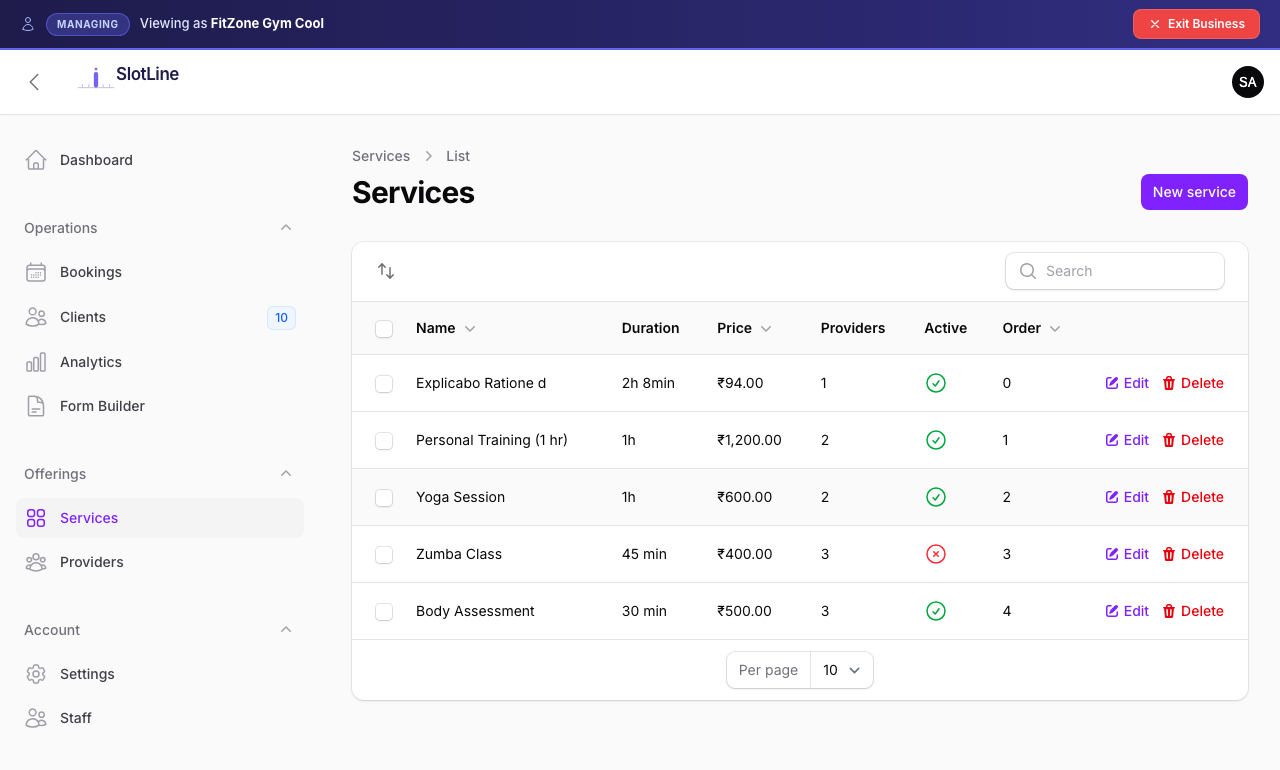
Creating a Service
- Go to Business Panel → Services → New Service
- Fill in the Name, Description, Duration, and Price
- Upload a cover Image (recommended: 800×500px, JPG or PNG)
- Toggle Requires Payment if clients must pay at booking
- Toggle Is Active on
- Save — the service is now visible on your booking page
Note: Set Duration accurately — it determines how many bookings fit in a day. A 60-minute service with a provider working 9am–5pm generates 8 available slots.
Virtual Sessions & Video Calls
v1.5.0 Business Panel → Services → Virtual Session
Any service can be marked as virtual to support online/video appointments. The Virtual Session section appears at the bottom of the service edit form.
Option A — Google Meet (auto-generated)
Best for providers who use Google Calendar sync.
- Toggle This is a virtual / online service → ON
- Leave Auto-generate Google Meet link → ON (default)
- Save
When a client books this service, a unique Google Meet link is automatically created via the Calendar API and:
- Stored on the booking record
- Included in the customer confirmation email as a "Join Video Call" button
- Included in the provider notification email
- Added to the
.icsiCal file asX-GOOGLE-CONFERENCE(shows natively in Google Calendar and Apple Calendar) - Shown in Business Panel → Bookings → View as a clickable link
Note: Google Meet generation requires the provider to have Google Calendar sync connected (Manage → Integrations → Calendar Sync). If the provider is not connected, no Meet link is generated — the custom URL fallback is used instead.
Warning: Meet links are immutable — once generated for a booking, rescheduling or updating the booking never overwrites the link. This ensures clients always have a working URL.
Option B — Custom video URL (Zoom, Teams, etc.)
Best when you have a static room URL or prefer not to use Google Meet.
- Toggle This is a virtual / online service → ON
- Toggle Auto-generate Google Meet link → OFF
- Paste your Zoom, Teams, or other
https://URL in Custom Video Call URL - Save
The custom URL is sent to all clients booking this service. Every booking for this service uses the same room link.
Link priority in emails
The email system resolves the video call link in this order:
booking.meet_link     (auto-generated Google Meet, if available)
  → service.video_link  (your custom Zoom / Teams URL)
    → (no button shown)
If Google Meet generation is disabled and no custom URL is set, the "Join Video Call" button is simply omitted from the email.
Assigning Providers
Each service can be delivered by one or more providers. Clients choose a provider when booking.
To assign providers:
- Edit the service
- Open the Providers tab
- Check each provider who offers this service
- Save
Warning: A service with no providers assigned will not appear on the booking page — even if the service itself is active. Always assign at least one active provider.
Availability & Slots
Available time slots are calculated dynamically at booking time. The slot engine respects:
| Factor | Effect |
|---|---|
| Provider working hours | Slots only generated within the provider's enabled hours for that day |
| Service duration | Slots are spaced by the service duration (e.g. 60min service → 9:00, 10:00, 11:00…) |
| Existing confirmed bookings | Already-booked slots are blocked and not shown |
| Provider active status | Inactive providers are excluded |
Provider works: 9:00 – 17:00
Service duration: 90 minutes

Generated slots:
  09:00 → 10:30
  10:30 → 12:00
  12:00 → 13:30
  13:30 → 15:00
  15:00 → 16:30

Total: 5 slots per day
Tip: Slots are generated in real time — no pre-population or caching. A slot only appears if it is genuinely available the moment the customer views the page.
Pricing & Payments
| Service Type | Booking Flow |
|---|---|
Free (Price = 0, Requires Payment = off) |
Booking confirmed immediately — no payment step |
Displayed price, no payment (Price > 0, Requires Payment = off) |
Price shown for reference only — booking confirmed immediately |
Paid (Price > 0, Requires Payment = on) |
Client redirected to Stripe Checkout — booking confirmed only after payment succeeds |
See Stripe Payments for full setup instructions including webhook configuration.