Bookings
Updated Oct 18, 2026
Booking Statuses
Each booking moves through a lifecycle from creation to completion:
| Status | Badge | When It's Set |
|---|---|---|
| Pending | Pending | Created — awaiting confirmation or payment |
| Confirmed | Confirmed | Manually confirmed, or payment received via Stripe |
| Cancelled | Cancelled | Cancelled by the client (via link) or by staff |
| Completed | Completed | Service was delivered — set manually by staff |
| No-Show | No-Show | Client did not appear — set manually by staff |
Client books
      ↓
   Pending
      ↓
Confirmed (free: immediate / paid: after Stripe webhook)
      ↓
  Completed ──── or ──── No-Show
      ↑
  Cancelled (at any point by client or staff)
Note: The sidebar badge shows today's Pending + Confirmed count only. Completed, Cancelled, and No-Show bookings are excluded.
Managing Bookings
Business Panel → Bookings
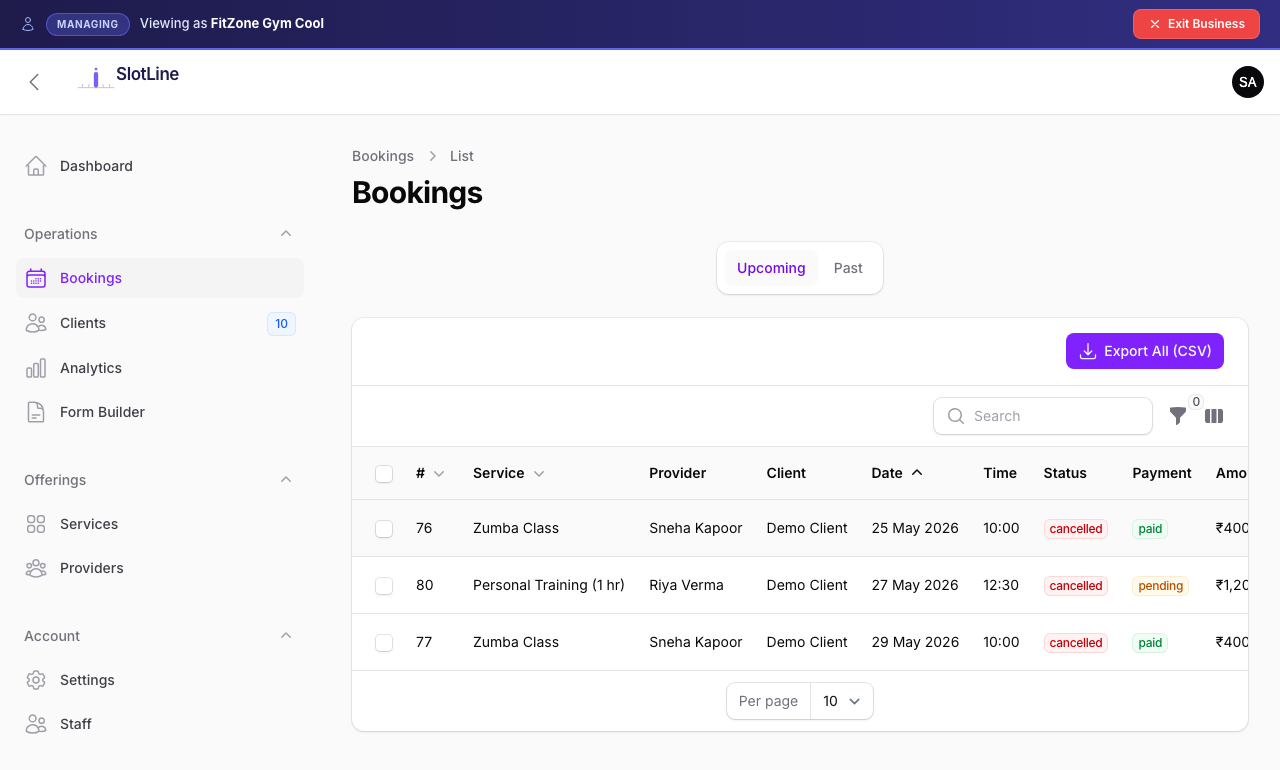
Filtering the list:
| Filter | Options |
|---|---|
| Status | Pending, Confirmed, Cancelled, Completed, No-Show |
| Service | Dropdown of your services |
| Provider | Dropdown of your providers |
| Date Range | From / To date pickers |
| Search | Client name or email |
Per-booking actions:
| Action | What It Does |
|---|---|
| View | Open booking details — client info, service, provider, notes |
| Edit | Change status or add internal notes |
| Cancel | Set status to Cancelled |
| Export | Download the filtered list as Excel or CSV |
Warning: Cancelling from the panel does not automatically email the client. Cancellation emails are only sent when the client uses their own cancellation link.
Creating Bookings Manually
Staff and owners can create bookings on behalf of clients — useful for phone or walk-in reservations.
- Click New Booking in the top-right of the Bookings list
- Select the Service
- Select the Provider
- Pick an available Date and Time from the slot picker
- Enter the client's Name, Email, and Phone
- Add optional Notes
- Click Save
What happens automatically:
- The slot is reserved immediately
- A confirmation email is sent to the client
- The booking appears in the list with Confirmed status
Note: Manual bookings bypass the payment step. Even paid services are confirmed directly — collect payment separately if needed.
Client Cancellations
Clients can cancel their own bookings in two ways: via the cancellation link in their confirmation email, or directly from the My Bookings portal.
Cancellation Link (email)
Every booking confirmation email includes a unique cancellation link tied to that specific booking. Clicking it opens a self-service page where the client confirms and the slot is freed immediately.
My Bookings Portal (in-app)
Logged-in clients can cancel from /my-bookings without leaving the app. A modal appears asking for an optional reason for cancellation:
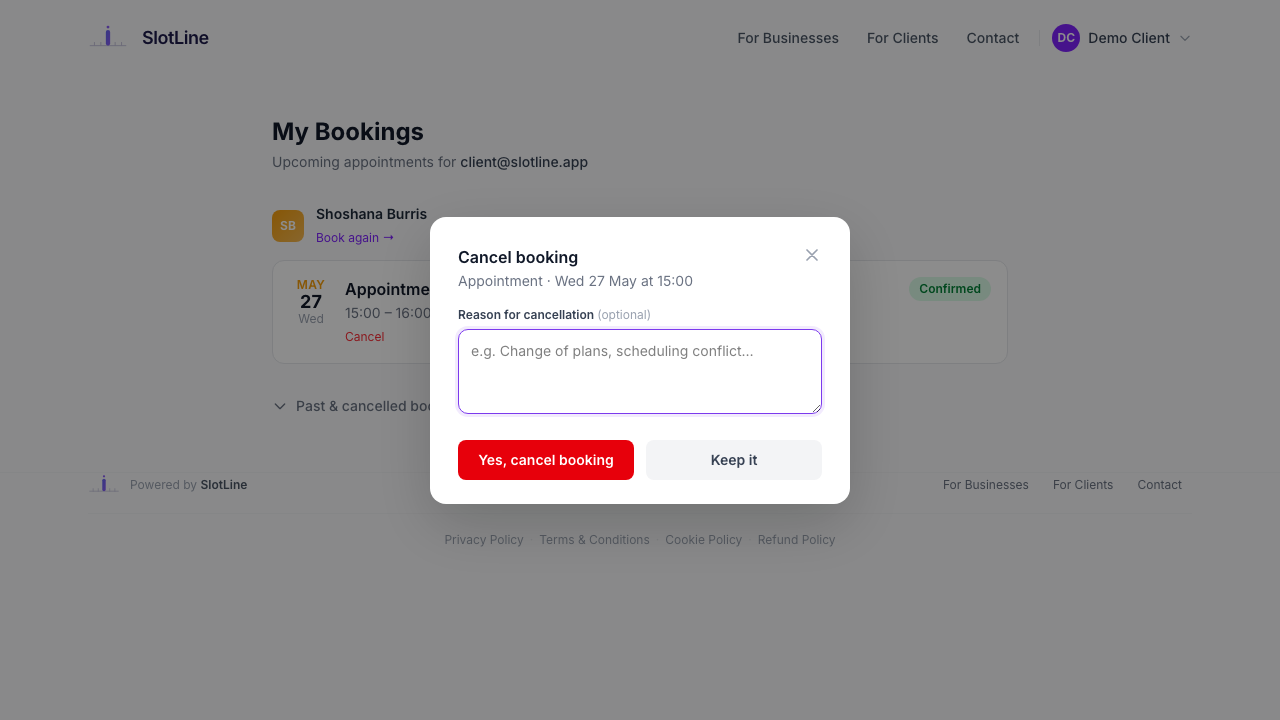
The cancellation reason is stored on the booking and visible in Business Panel → Bookings → View. It also appears in italic on the cancelled card in the client's My Bookings page.
Controlling cancellation permissions
You can disable self-service cancellations for your business entirely:
Business Panel → Settings → Booking Behaviour
Toggle "Allow clients to cancel bookings online" off. Clients will see a message directing them to contact you directly instead.
What happens on cancellation (either method):
- Booking status → Cancelled
- Cancellation reason stored (if provided)
- A cancellation email is sent to the client
- Staff receive an in-app notification: "Booking #N cancelled by {name}"
- The time slot becomes available immediately for new bookings
Tip: Client-initiated cancellations are fully self-service — no staff involvement needed. The slot reopens automatically.
iCal Export
Every booking generates a standard iCal (.ics) file that clients can add to any calendar app.
Download URL:
https://yourdomain.com/booking/{token}/ical
The link is included in the booking confirmation email. It works with:
| Calendar App | Compatible |
|---|---|
| Google Calendar | ✅ |
| Apple Calendar (iOS / macOS) | ✅ |
| Microsoft Outlook | ✅ |
| Any iCal-compatible app | ✅ |
The iCal event includes the service name, provider, date, time, and duration. It does not auto-update if the booking is changed — clients must download a new
.icsif the booking is rescheduled.
My Bookings Portal
Logged-in clients get a single dashboard at /my-bookings that shows all their appointments across every business they've booked with — not just yours.
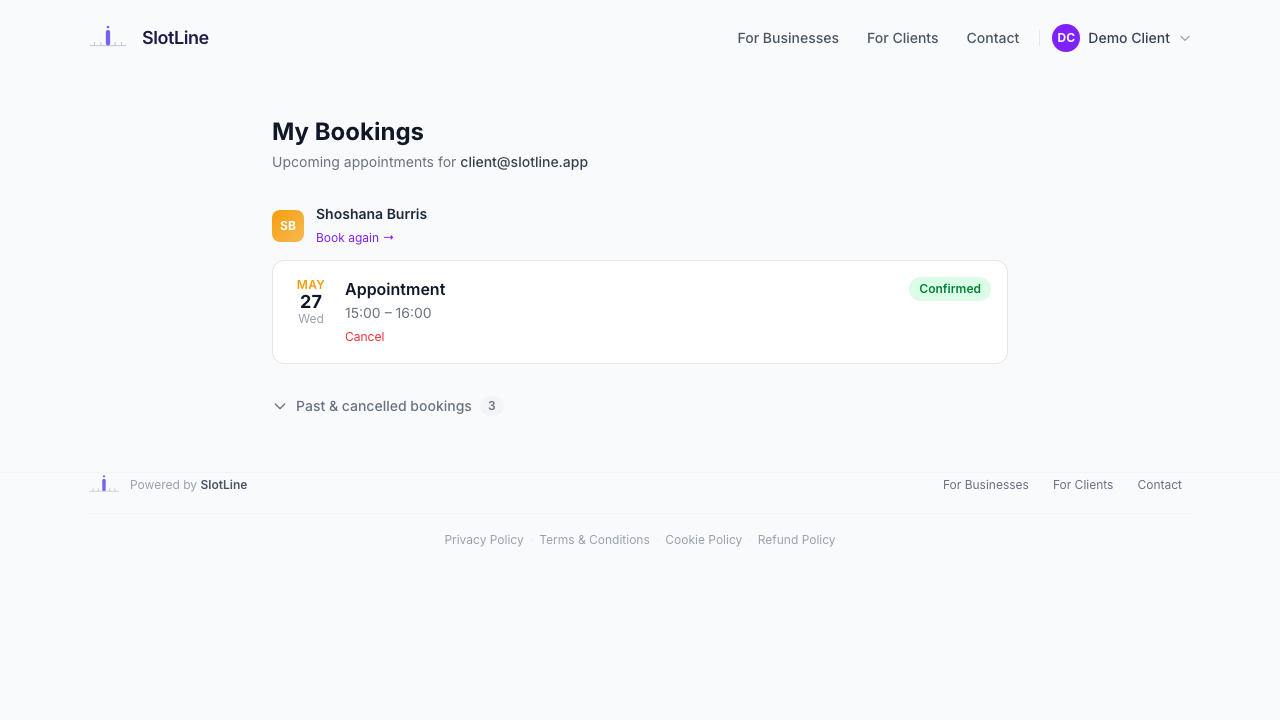
What clients see:
| Section | Contents |
|---|---|
| Upcoming | All pending and confirmed bookings, ordered by date, grouped by business |
| Past & Cancelled | Last 20 past or cancelled bookings in a collapsible section |
Each booking card shows the service name, date badge (month/day/weekday in the business brand colour), time range, and status pill. Cancelled cards show the reason in italic if one was provided.
Booking form pre-fill
When a logged-in client visits any booking page, their Full Name, Email, and Phone are automatically pre-filled from their account. The email field is locked — it can't be changed — so every booking is guaranteed to appear under their account.
Note: The email lock prevents the common issue of bookings going "missing" because a client accidentally typed a different address on the booking form.