Providers & Staff
Updated Oct 19, 2026
Providers Overview
Business Panel → Providers
Providers are the bookable team members — the people clients actually schedule time with. Each provider has their own profile, schedule, and service assignments.
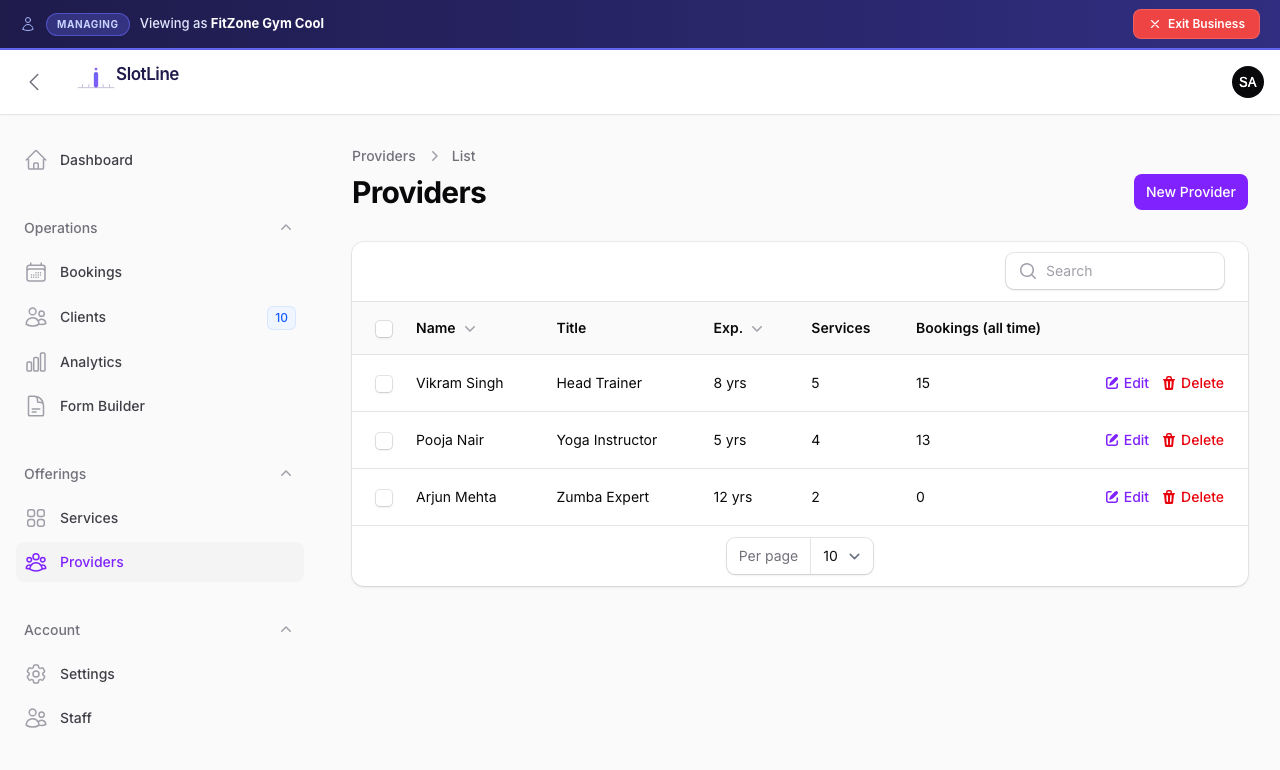
Provider Fields
| Field | Description |
|---|---|
| Name | Displayed on the booking page provider card |
| Links this provider to a user account on the platform | |
| Bio | Short description shown on the booking page |
| Avatar | Profile photo — shown on the booking page and panel |
| Working Hours | Day-by-day schedule defining bookable windows |
| Is Active | Only active providers appear on the booking page |
Note: The Email field links the provider to a user account. If no account exists for that email, one is created automatically and a welcome email is sent.
Working Shifts
Working Shifts define when a provider is available and how their bookable time slots are generated. Each provider can have one or more shifts, managed from the Working Shifts panel on the provider edit page.
To configure:
- Edit the provider
- Scroll to the Working Shifts panel and click New
- Fill in the shift and save
| Field | What it does |
|---|---|
| Name | A label for the shift (e.g. "Weekday mornings") |
| Start time | When the first slot of the shift begins |
| Duration | Length of each slot, in minutes |
| No. of Slots | How many consecutive time windows the shift generates |
| Buffer | Gap, in minutes, inserted between consecutive slots |
| Capacity per slot | How many people can book each time window (see below) |
| Available Days | Which weekdays this shift runs |
A shift steps out from the start time, creating No. of Slots windows spaced by Duration + Buffer. For example — start 09:00, duration 30, buffer 0, 4 slots → 09:00, 09:30, 10:00, 10:30.
Capacity per slot (group bookings)
Capacity per slot is how many people can book the same time window before it shows as Full:
1(default) → classic one-to-one appointments. One booking per time, unchanged behaviour.> 1→ group bookings. E.g. a yoga class at10:00 AMwith capacity12lets up to twelve people book that single 10:00 window.
Capacity and No. of Slots are two different dimensions: No. of Slots is how many time windows exist across the day; Capacity per slot is how many people each window holds. A shift with 4 slots × capacity 12 accepts up to 48 bookings a day.
On the booking page, group slots show the seats remaining (e.g. "3 spots left") and switch to Full once every seat is taken.
Note: Shifts take priority over tenant-wide availability. If a provider has any Working Shifts, those shifts define their schedule and capacity, overriding the general Availability set in the Form Builder. The Form Builder availability applies only to providers who have no shifts of their own.
Warning: A provider with no shifts and no tenant-wide availability will have zero available slots.
Staff Overview
Business Panel → Staff
Staff are team members who need access to the Business Panel to help manage bookings — but are not themselves bookable. They don't appear on the public booking page.
What staff can do:
| Action | Allowed |
|---|---|
| View all bookings | ✅ Yes |
| Create bookings manually | ✅ Yes |
| Change booking status | ✅ Yes |
| View services | ✅ Read-only |
| Edit services | ❌ No |
| View providers | ✅ Read-only |
| Edit providers | ❌ No |
| View clients | ❌ No |
| Change business settings | ❌ No |
Important: Staff cannot access the Clients section or Business Settings. These are owner-only areas. If a staff member needs these permissions, they should be given the
tenant_ownerrole instead.
Adding Staff
- Go to Business Panel → Staff → Add Staff
- Enter their email address
- If an account with that email already exists — it is linked
- If no account exists — a new user account is created automatically
- The new staff member receives a welcome email with login instructions
Note: Staff log in at
/manage— not/admin. Removing a staff member from your team does not delete their user account.
Role Comparison
| Capability | Owner | Provider | Staff |
|---|---|---|---|
| Manage services | ✅ | ❌ | ❌ |
| Manage providers | ✅ | ❌ | ❌ |
| Manage staff | ✅ | ❌ | ❌ |
| View all bookings | ✅ | ❌ | ✅ |
| View own bookings | ✅ | ✅ | ✅ |
| Create bookings | ✅ | ❌ | ✅ |
| View clients | ✅ | ❌ | ❌ |
| Business settings | ✅ | ❌ | ❌ |
| Appears on booking page | ✅ (if provider too) | ✅ | ❌ |