User Management
Updated Oct 19, 2026
User Roles
Every user is assigned one or more roles that determine which panel they can access and what they can do inside it.
| Role | Panel Access | Capabilities |
|---|---|---|
| super_admin | /admin |
Full platform control — bypasses all permission checks |
| tenant_owner | /manage |
Manages their own business: services, providers, staff, bookings, settings |
| provider | /manage |
Bookable team member with their own working hours |
| staff | /manage |
Can view and manage bookings only — no access to services, providers, or settings |
| client | Public only | End customer who has completed a booking |
Note: Users can hold multiple roles simultaneously. A business owner can be both
tenant_ownerandprovider— managing the business while appearing on the booking page.
Creating a User
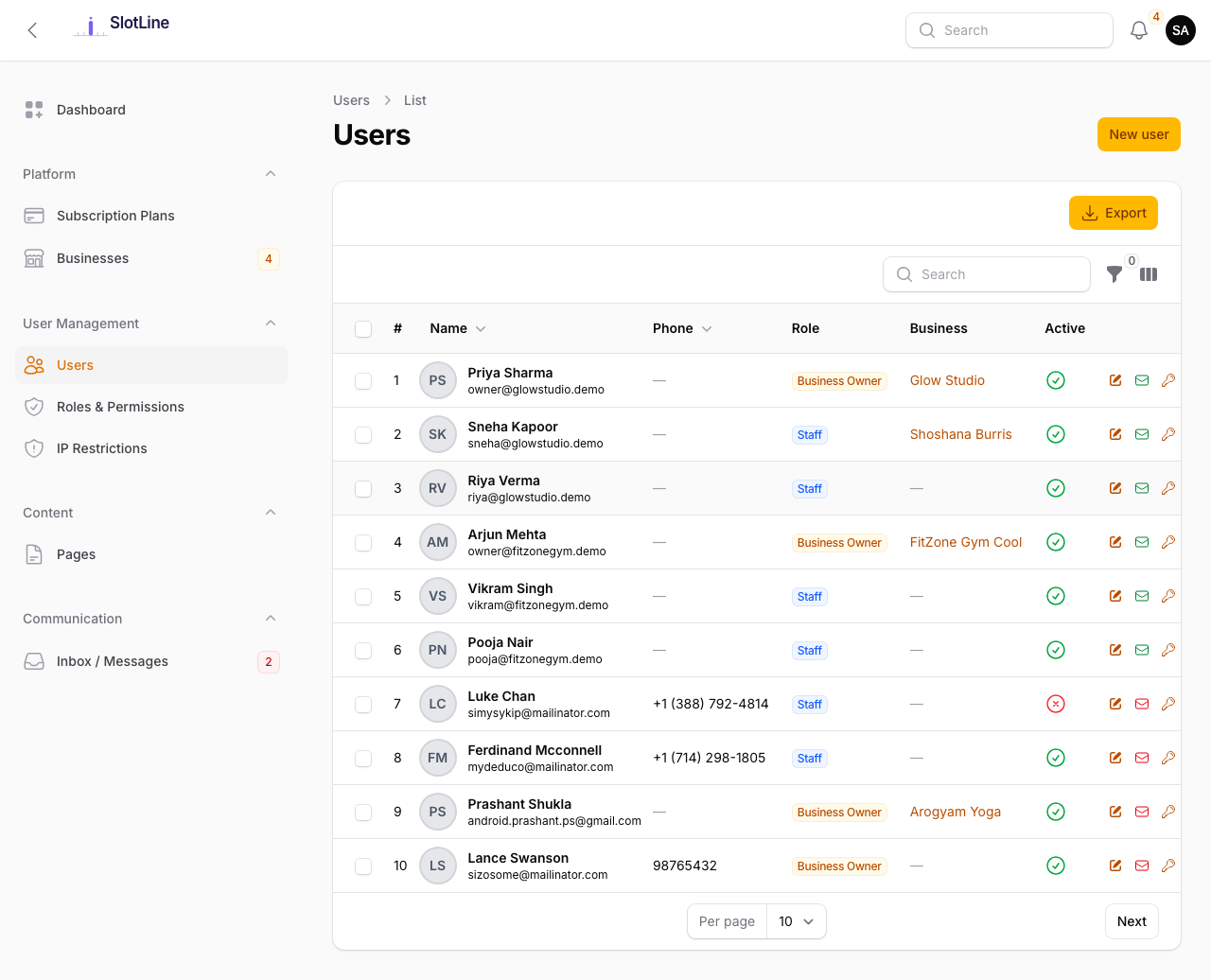
- Go to Admin → Users → New User
- Fill in Name, Email, and Password
- Assign one or more Roles
- Click Save
The user can log in immediately. A welcome email is sent if the welcome_email notification is enabled in your preferences.
Editing a User
Click any user row to open their profile. You can:
- Update their name, email, or password
- Add or remove roles
- View their linked tenant (if they are a business owner)
- Revoke all active sessions (forces re-login everywhere)
Warning: Removing the
super_adminrole from your own account will immediately lock you out of the admin panel. Always ensure at least one other super admin exists before making role changes to your account.
Impersonating a User
Impersonation lets you log in as any user to troubleshoot their experience without knowing their password.
- Find the user in Admin → Users
- Click the Impersonate action button
- You are immediately redirected to their panel (Business Panel or public frontend depending on their role)
- A persistent banner at the top of the page shows who you are impersonating
- Click Stop Impersonating to return to your super admin session
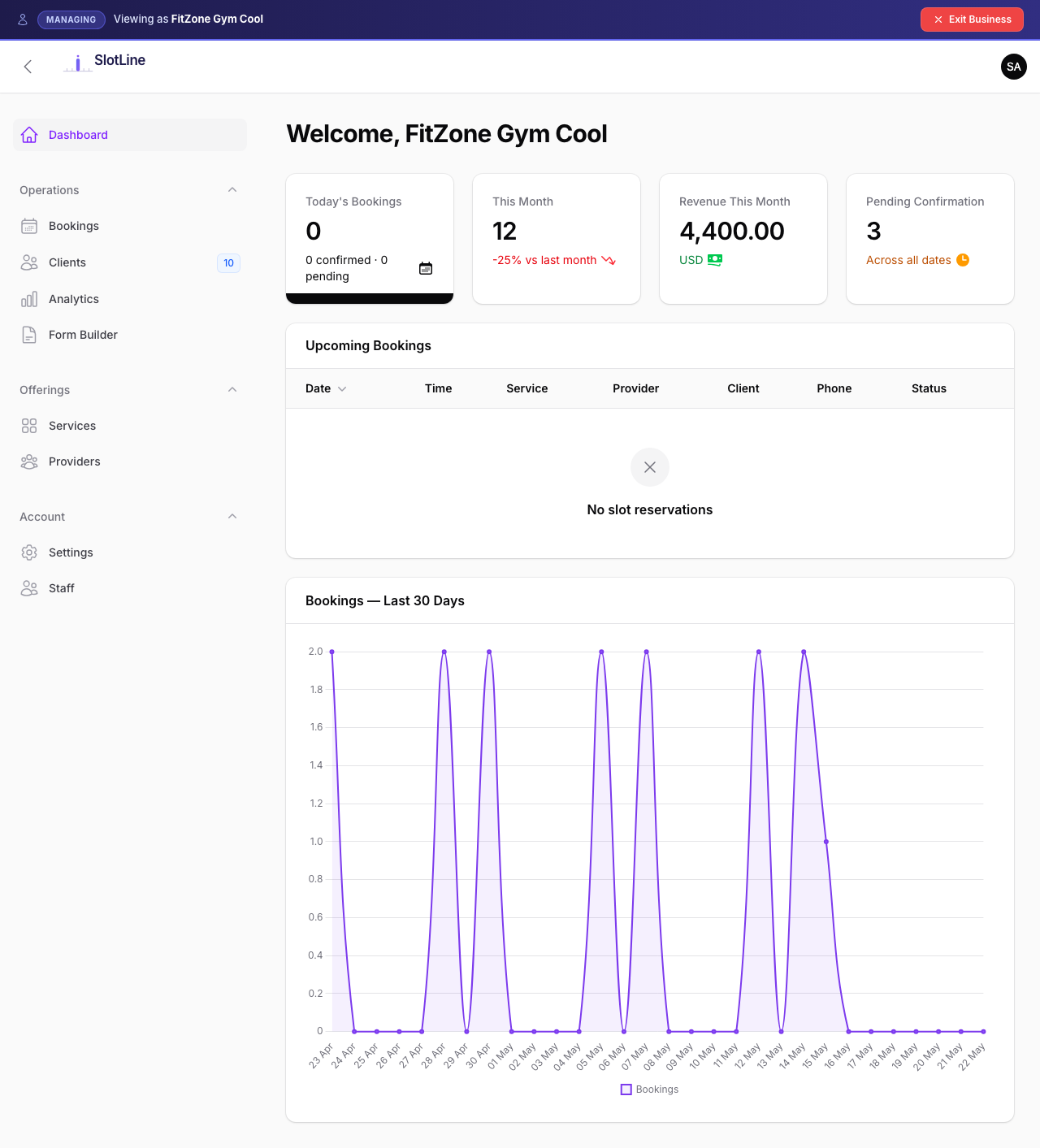
All sessions are permanently logged in Admin → Impersonation Logs with: super admin, target user, start time, end time, and IP address.
Important: Impersonation is a privileged action. Every session is permanently logged. Only impersonate users for legitimate support purposes.
Login Activity
Admin → Login Activity records every authentication attempt with:
| Column | Description |
|---|---|
| User | Email address used |
| IP Address | Client IP at time of attempt |
| User Agent | Browser / device string |
| Status | success or failed |
| Date & Time | Timestamp of the attempt |
Use this log to investigate suspicious activity or repeated failed login attempts. Combine with Admin → IP Restrictions to block specific addresses.