Dashboard & Settings
Updated Oct 19, 2026
Dashboard
The admin dashboard is your platform health snapshot. It loads automatically when you visit /admin.
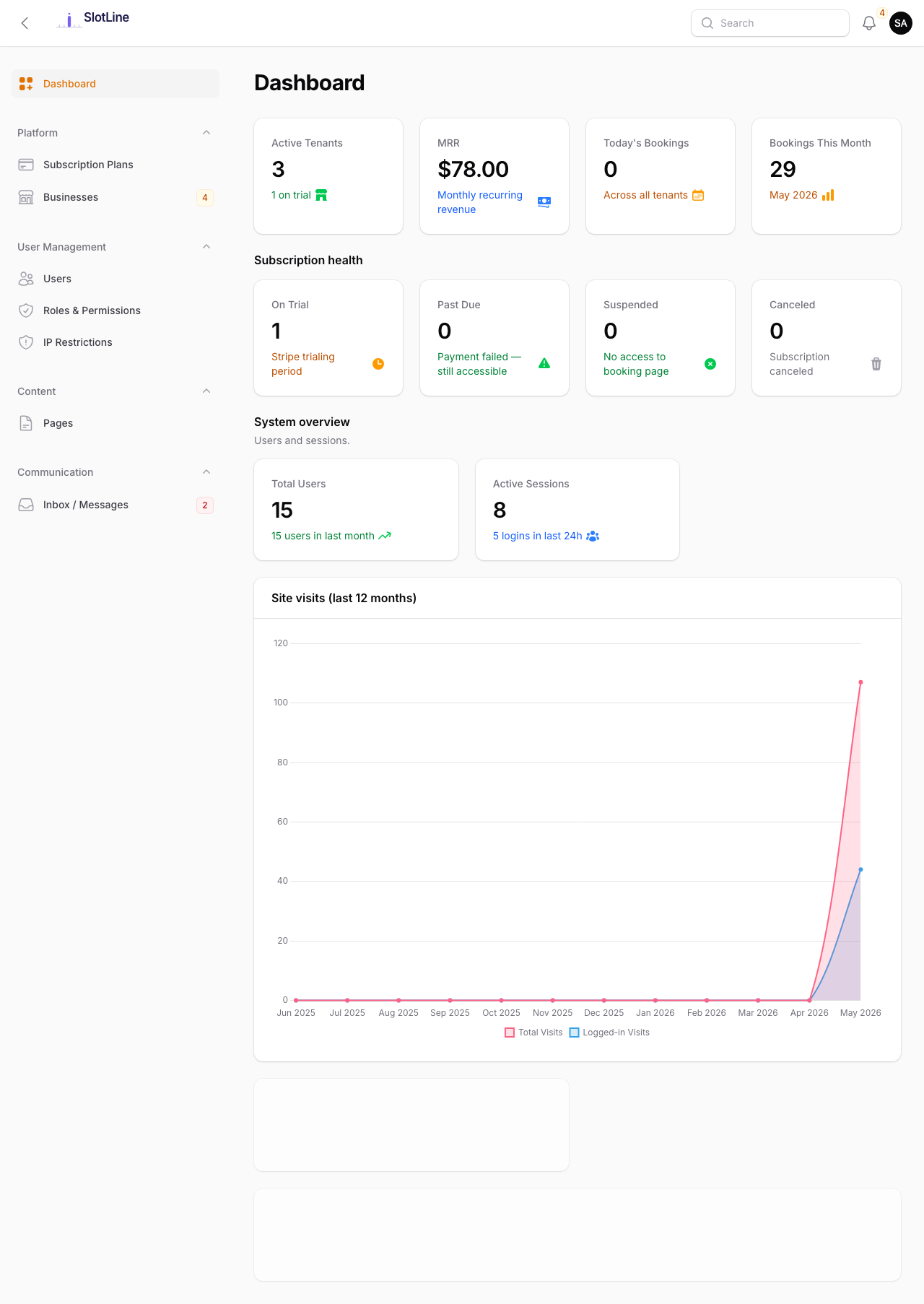
At a glance you can see:
- Total users and businesses registered
- Active subscriptions
- Recent user registrations
- Latest activity log entries
Settings Tabs
Navigate to Admin → Settings. All changes save immediately with no server restart.
Branding
Admin → Settings → Branding
Upload your logo and favicon, set the site name, and control the admin sidebar logo size. See Configuration → Branding.
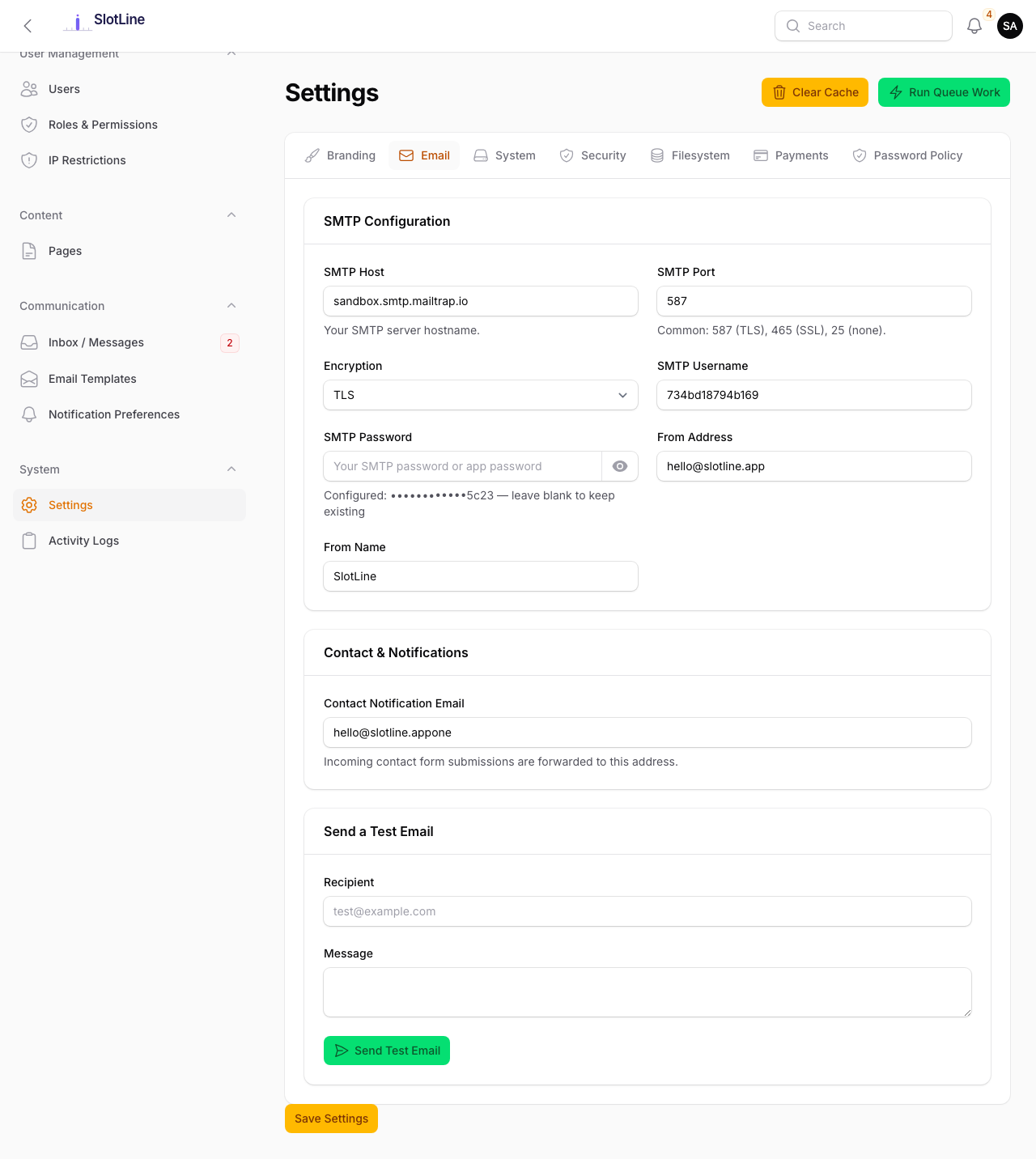
Admin → Settings → Email
SMTP credentials for outgoing email. Includes a Send Test Email form at the bottom of the tab — enter any address and click send to instantly verify delivery.
System
Admin → Settings → System
Maintenance mode toggle with a custom visitor message, timezone selector, date format, and time format (12h / 24h).
Language Management — choose which of the 8 built-in languages are active across the entire platform. Unchecked languages disappear from every language switcher (admin panel, business panel, and public pages) immediately after saving. At least one language must remain enabled. See Multi-Language → Managing Enabled Languages for full details.
Business Registration Options — restrict which timezones and currencies appear in the business setup wizard. Leave blank to allow all.
Security
Admin → Settings → Security
Session timeout, login attempt limits, lockout duration, Force HTTPS toggle, and Google reCAPTCHA v3 credentials. See the dedicated Security Logs and reCAPTCHA v3 pages.
Filesystem
Admin → Settings → Storage
Switch between local disk and Amazon S3. S3 credentials are stored write-only and never displayed after saving. See Configuration → Filesystem.
Payments
Admin → Settings → Payments
Choose the platform payment gateway used when businesses subscribe to a paid plan. Pick a gateway card — Stripe, Razorpay, PayPal, Paddle, or Paystack — and only that gateway's credential fields are shown (the same card-based picker used on the tenant booking-payments page). See Stripe Payments for full setup instructions.
For Paystack, enter your Public Key and Secret Key; the Secret Key also verifies subscription webhooks (/paystack/webhook) via HMAC-SHA512. Set each plan's Paystack Plan code (PLN_…) under Admin → Subscription Plans so recurring subscriptions can be created at signup.
Password Policy
Admin → Settings → Password Policy
Password complexity rules, expiry, and history enforcement. See Password Policy.
Header Actions
Two utility buttons appear in the Settings page header:
| Button | What It Does |
|---|---|
| Clear Cache | Runs php artisan optimize:clear — clears config, route, view, and event caches |
| Run Queue Work | Starts a one-off background queue worker process (useful on hosts without Supervisor) |
Note: Settings changes auto-clear the cache. Only run Clear Cache manually after editing
.envdirectly or deploying new code.
Warning: Run Queue Work starts a temporary worker. On production, use Supervisor for a persistent worker. See Web Server Setup → Queue Worker.